Getting started with Multiplayer in Unity
TL;DR
Mirror is a free, open source networking library for Unity, and this tutorial takes you from installing it to a small game where two players shoot each other. You install Mirror 96.11.3 from its GitHub release, set up a Network Manager and a networked player prefab, and test two players first with a build and then with Unity's Multiplayer Play Mode, which needs no build at all. Then you use a Command to shoot and SyncVars to sync health, so every player sees the same game, even players who join late. Keep in mind that localhost only works on your own computer. To play with friends over the internet, you need port forwarding, a relay or a dedicated server.
This is a perfect tutorial for new developers who want to get started with multiplayer in Unity. There are many ways to do networking in Unity, but in this tutorial we will go with Mirror Networking. Why? Mirror started as a replacement for UNet, Unity's old networking system that Unity has since deprecated. Mirror itself is actively maintained by an open source community. It gets constant updates and has an amazing community on Discord that is very helpful.
Another reason to pick Mirror is that it is free, it is very easy to make it work on Steam, and you can have free co-op multiplayer for your smaller games.
Table of contents
- How do you install Mirror in Unity?
- How do you get two players in the same scene with Mirror?
- What is happening behind the scenes?
- How do you test multiplayer without making a build?
- How do you sync data over the network with SyncVar and Command?
- Can you play with your friends over localhost?
How do you install Mirror in Unity?
For this tutorial I am using Unity 6.3 LTS (6000.3.24f1) with a URP 3D project, and Mirror 96.11.3, the latest release at the time of writing. On a different Unity version the steps should be the same, but menus can move around between versions.
Go to the Mirror releases page on GitHub and open the latest release. Under Assets, click Mirror Unity Package. It downloads as
Mirror-96.11.3.unitypackage.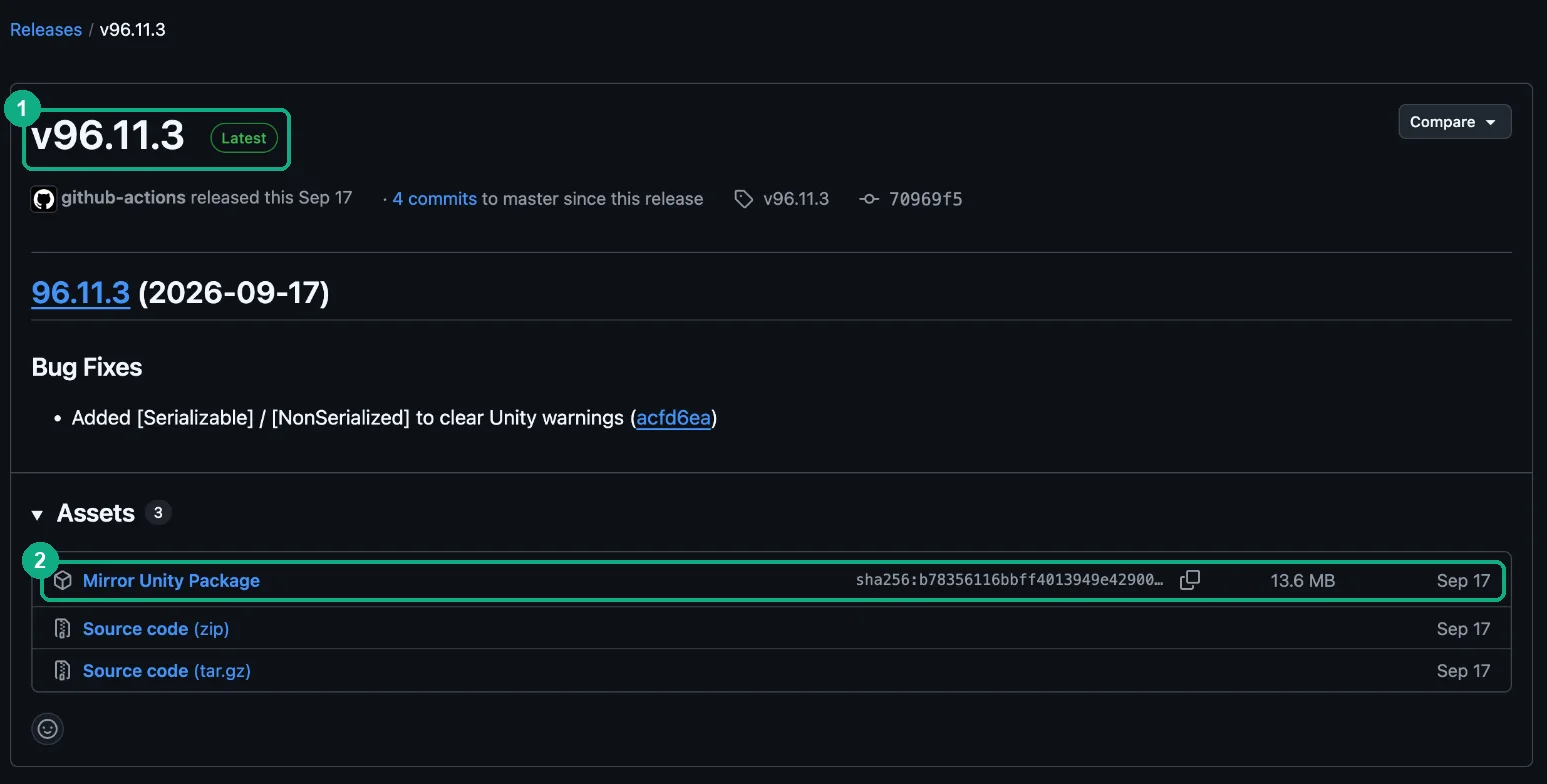
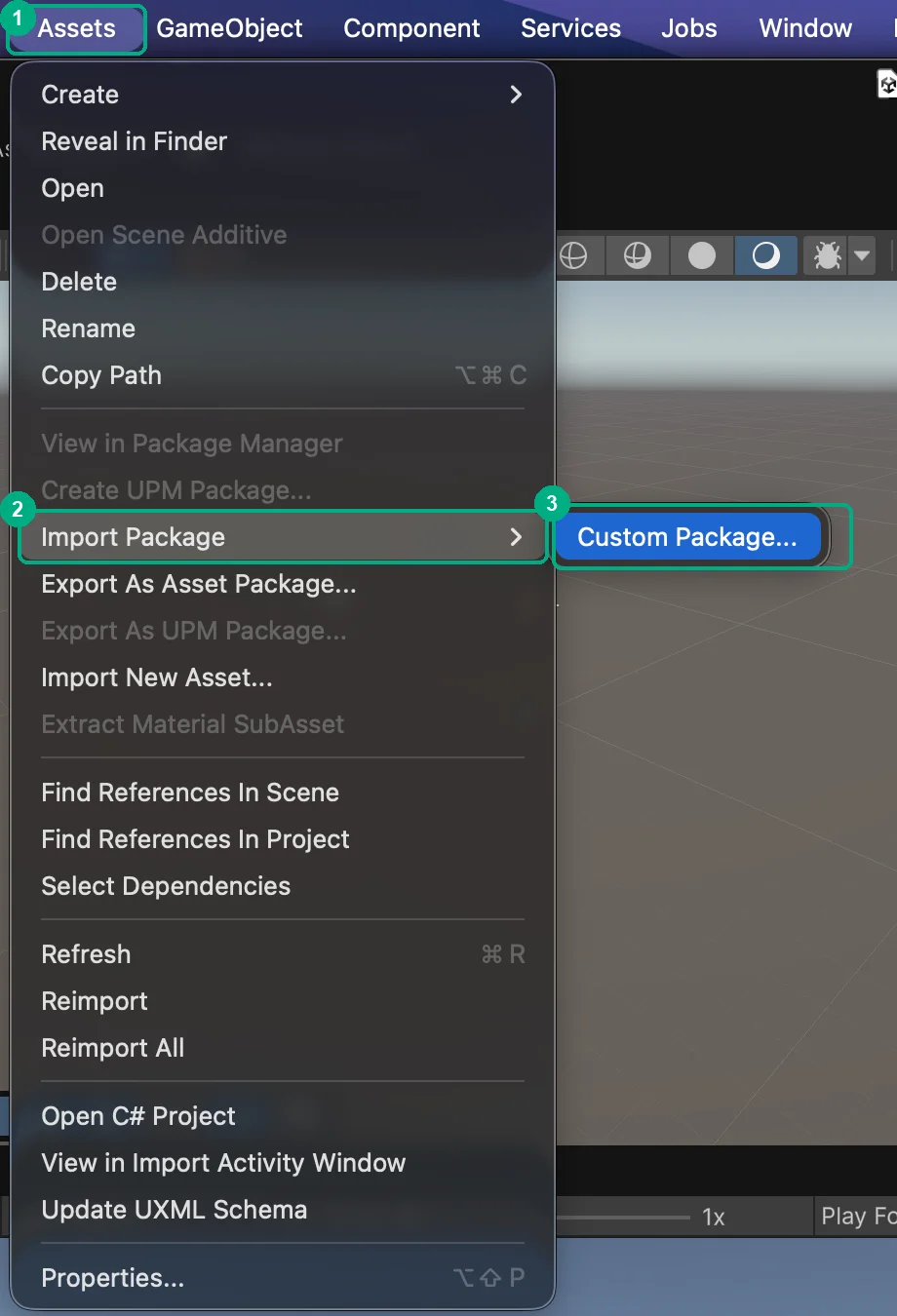
In Unity, go to Assets > Import Package > Custom Package....
Find the
.unitypackagefile in your Downloads folder, select it and click Open.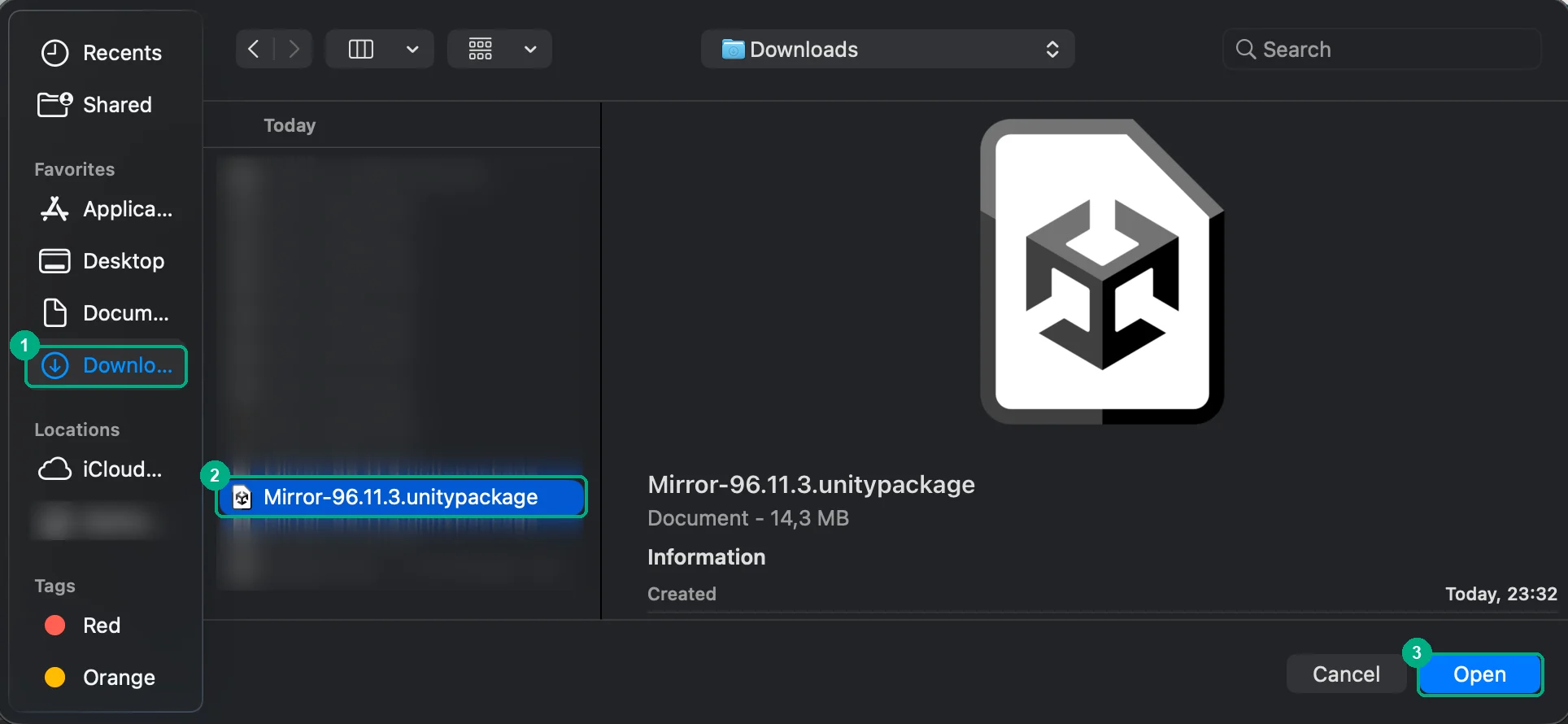
Unity warns you that Mirror depends on two Unity packages,
com.unity.uguiandcom.unity.nuget.newtonsoft-json. Click Install/Upgrade and Unity adds them for you.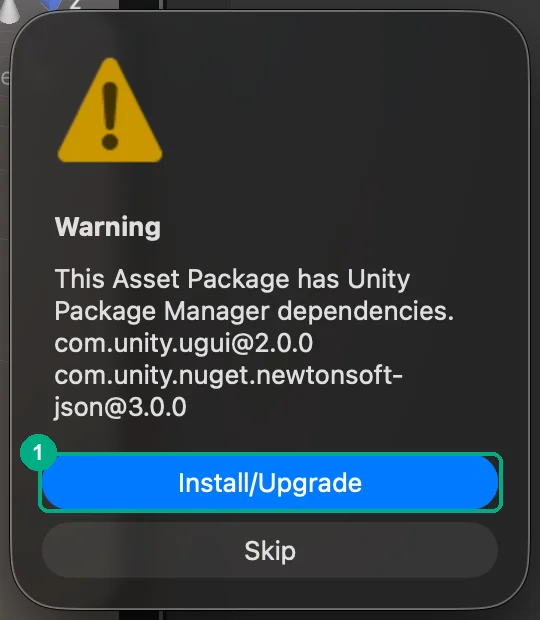
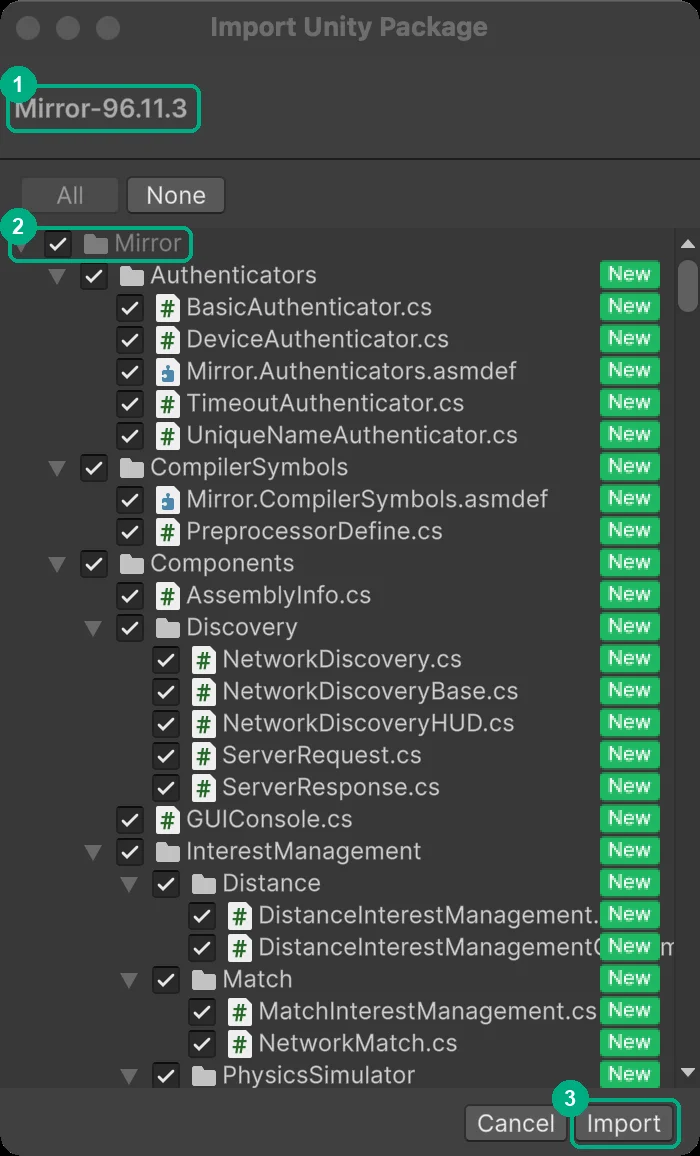
The Import Unity Package window lists every file in Mirror. Leave everything checked and click Import.
When Unity finishes compiling, you will see two new folders in your Project window.
Mirroris the library itself.ScriptTemplatesadds Mirror scripts like Network Behaviour and Network Manager to the Create > Mirror menu. If the Console shows no red errors, Mirror is installed.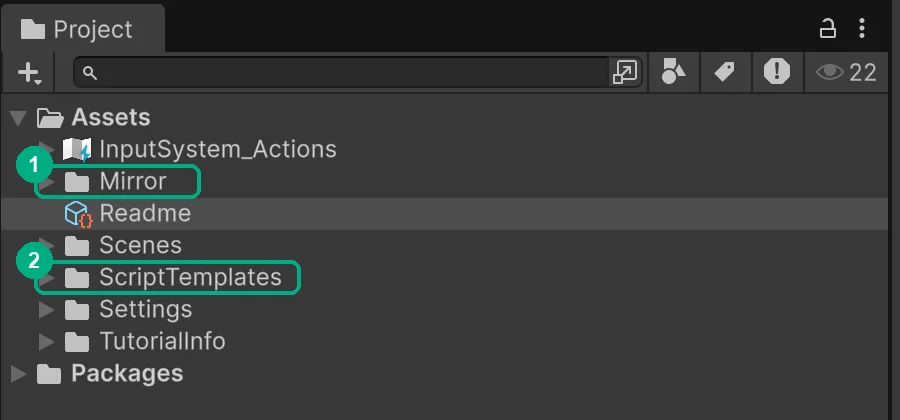
How do you get two players in the same scene with Mirror?
Mirror needs a Network Manager that runs the connection and a player prefab it can spawn for everyone who joins. We will also add two spawn points so the players do not spawn inside each other, and then test it with a build and the Unity Editor running side by side.
Before we start, give the scene something to stand on. Right-click in the Hierarchy, choose 3D Object > Plane, name it Ground and set its Scale to 2 on X and Z. I also moved the Main Camera to Position (0, 10, -10) with Rotation X at 45, so it looks down at the whole ground.
How do you create a networked player?
Right-click in the Hierarchy and choose 3D Object > Capsule. Name it
Playerand set Position Y to 1 so it stands on the ground.Create a
Prefabsfolder in your Project window, drag thePlayerinto it to make a prefab, and delete thePlayerfrom the scene. Mirror spawns players from a prefab, so the Network Manager will create one for every player who joins. I explain why it has to be a prefab further down.Select the
Playerprefab and click Add Component. Add Network Identity.Add Network Transform (Reliable).
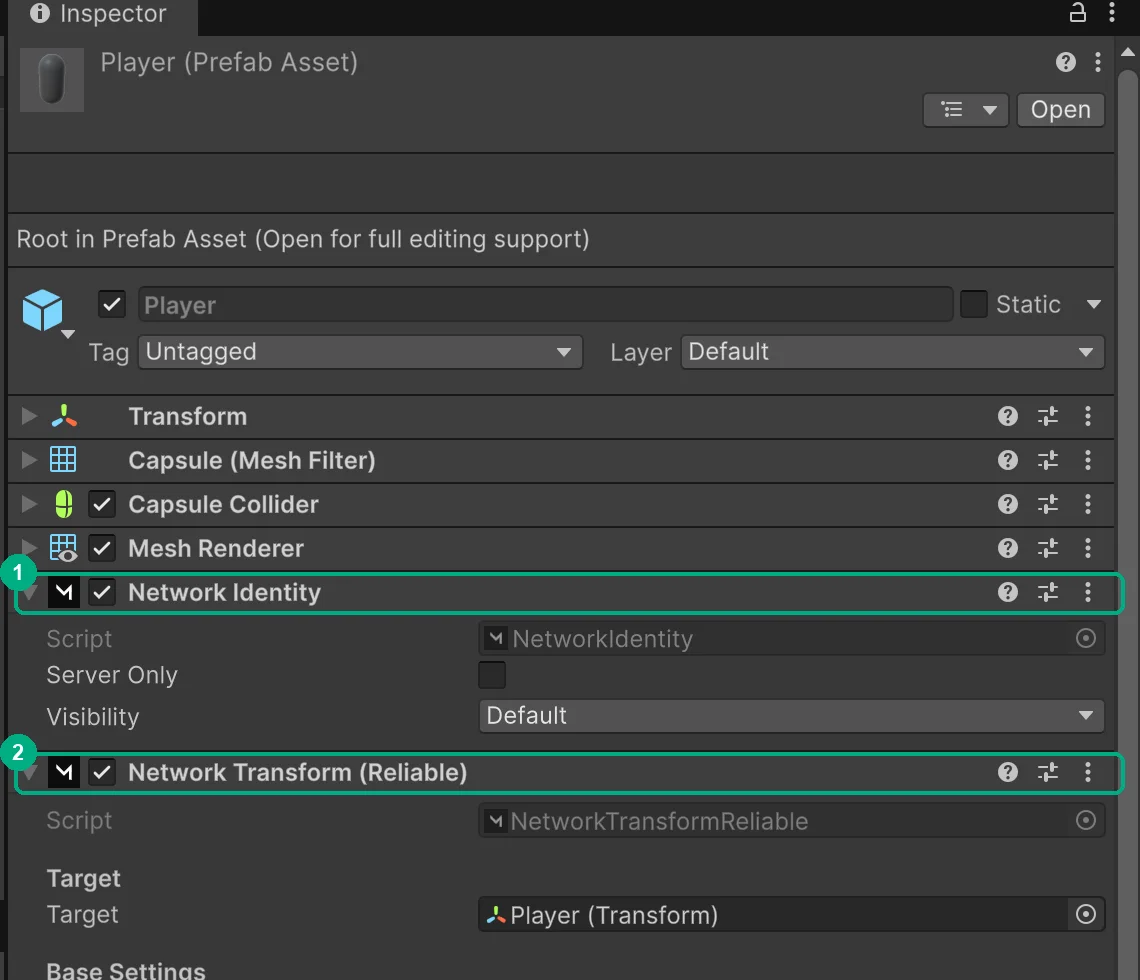
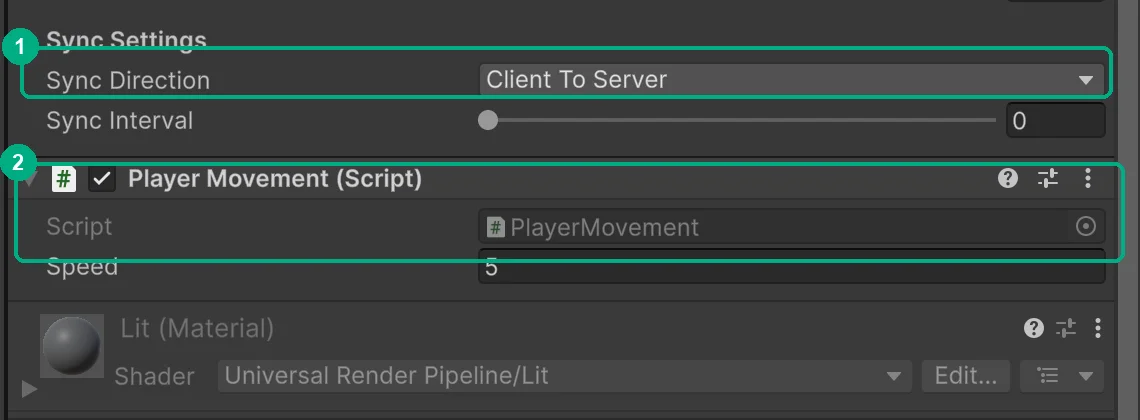
Scroll down to Sync Settings at the bottom of Network Transform and set Sync Direction to Client To Server. With Unity 6.3 and Mirror 96.11.3, adding Network Transform throws a NullReferenceException in the Console and leaves Sync Direction on Server To Client. The error itself is harmless, but if you skip this step, a client can move its own capsule and nobody else will see it. I explain what Sync Direction means in the server authority part below.
Create a new script called
PlayerMovement, paste the code below into it and add it to thePlayerprefab.
using Mirror;
using UnityEngine;
using UnityEngine.InputSystem;

public class PlayerMovement : NetworkBehaviour
{
    public float speed = 5f;

    public override void OnStartLocalPlayer()
    {
        // Paint your own player green so you can tell it apart from the other one.
        GetComponent<Renderer>().material.color = Color.green;
    }

    void Update()
    {
        // Only move the player this game instance owns.
        if (!isLocalPlayer) return;

        Keyboard keyboard = Keyboard.current;
        if (keyboard == null) return;

        Vector3 move = Vector3.zero;
        if (keyboard.wKey.isPressed) move.z += 1;
        if (keyboard.sKey.isPressed) move.z -= 1;
        if (keyboard.dKey.isPressed) move.x += 1;
        if (keyboard.aKey.isPressed) move.x -= 1;

        transform.position += move.normalized * speed * Time.deltaTime;
    }
}
How do you set up the Network Manager?
Right-click in the Hierarchy, choose Create Empty and name it
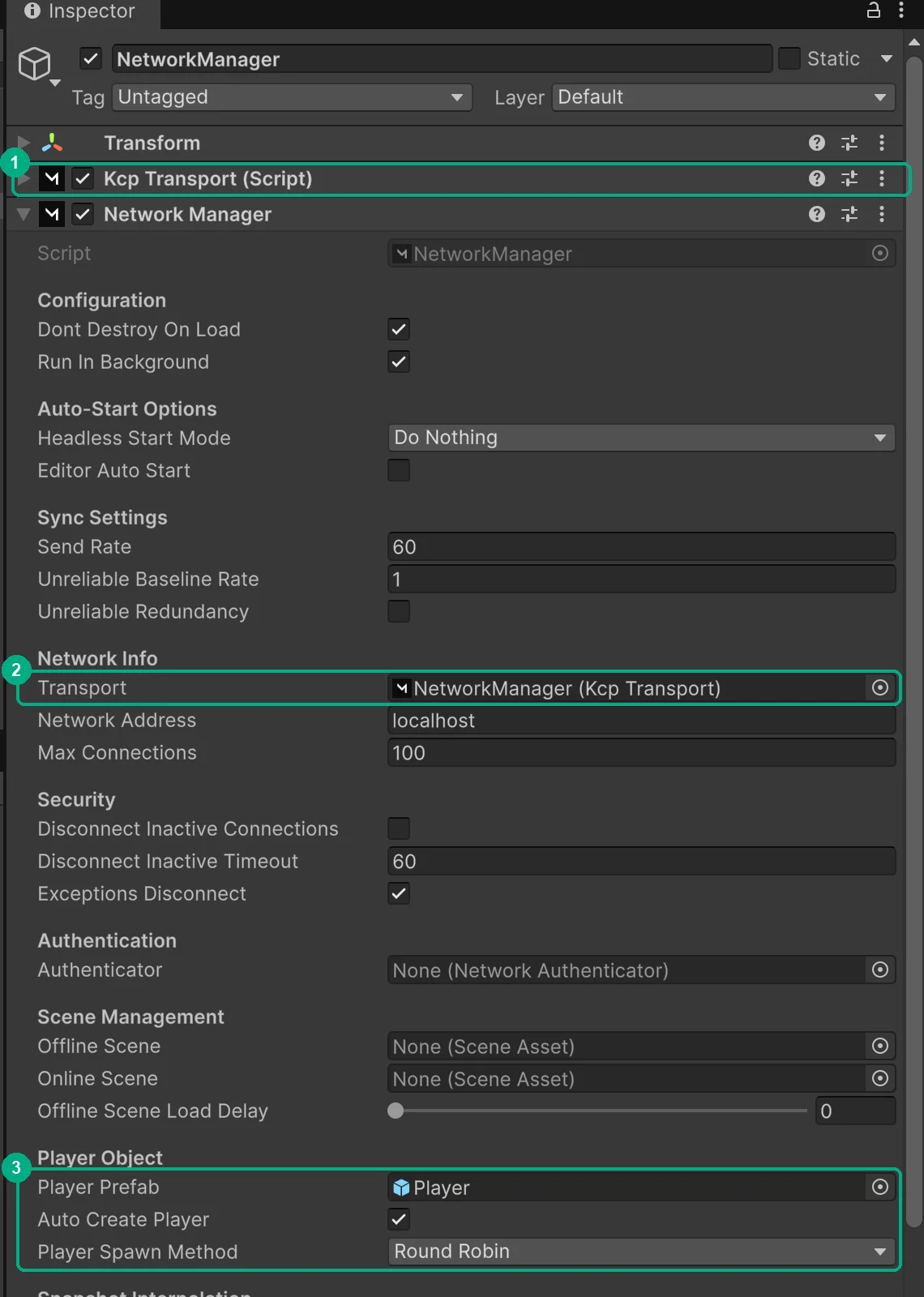
NetworkManager.Click Add Component and add Kcp Transport. The transport is the part that actually sends data over the network, and KCP is the one Mirror uses by default.
Add Network Manager and drag the Kcp Transport component into its Transport field.
Drag your
Playerprefab into Player Prefab and set Player Spawn Method to Round Robin. Keep Auto Create Player checked, so Mirror spawns a player for everyone who connects.Add Network Manager HUD. It draws the Host, Client and Server Only buttons we will use to test.
How do you stop players from spawning on top of each other?
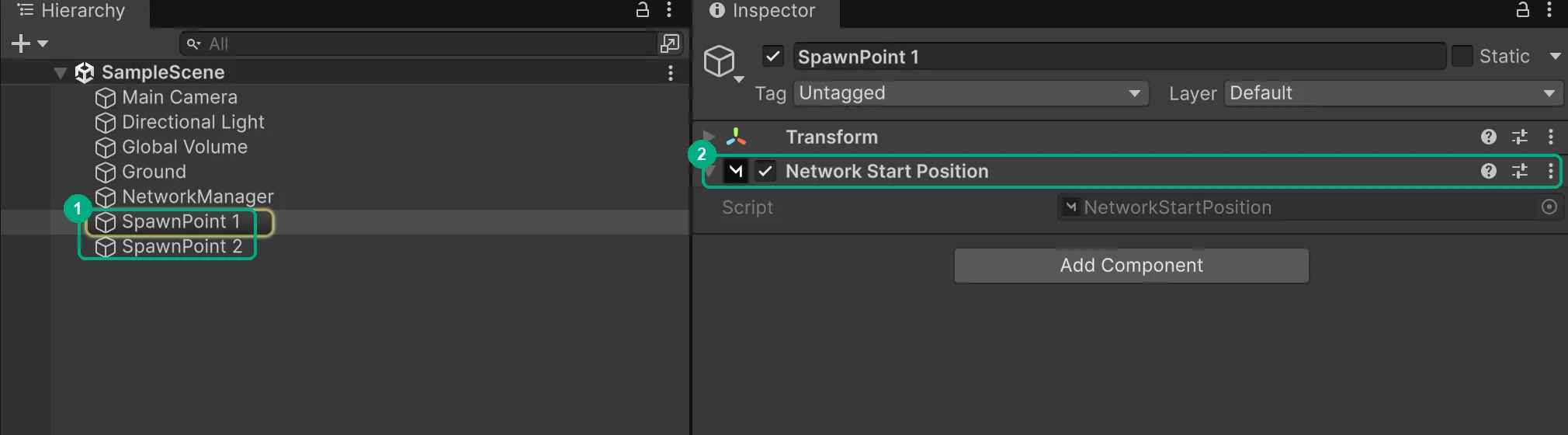
Create an empty GameObject called SpawnPoint 1 at Position (-3, 1, 0) and add a Network Start Position component to it. Duplicate it, rename the copy to SpawnPoint 2 and move it to (3, 1, 0). With Player Spawn Method set to Round Robin, each new player gets the next spawn point in the list.
How do you test multiplayer with a build and the Editor?
You need two copies of the game running at the same time. The simplest way is a build as the host and the Unity Editor as the client.
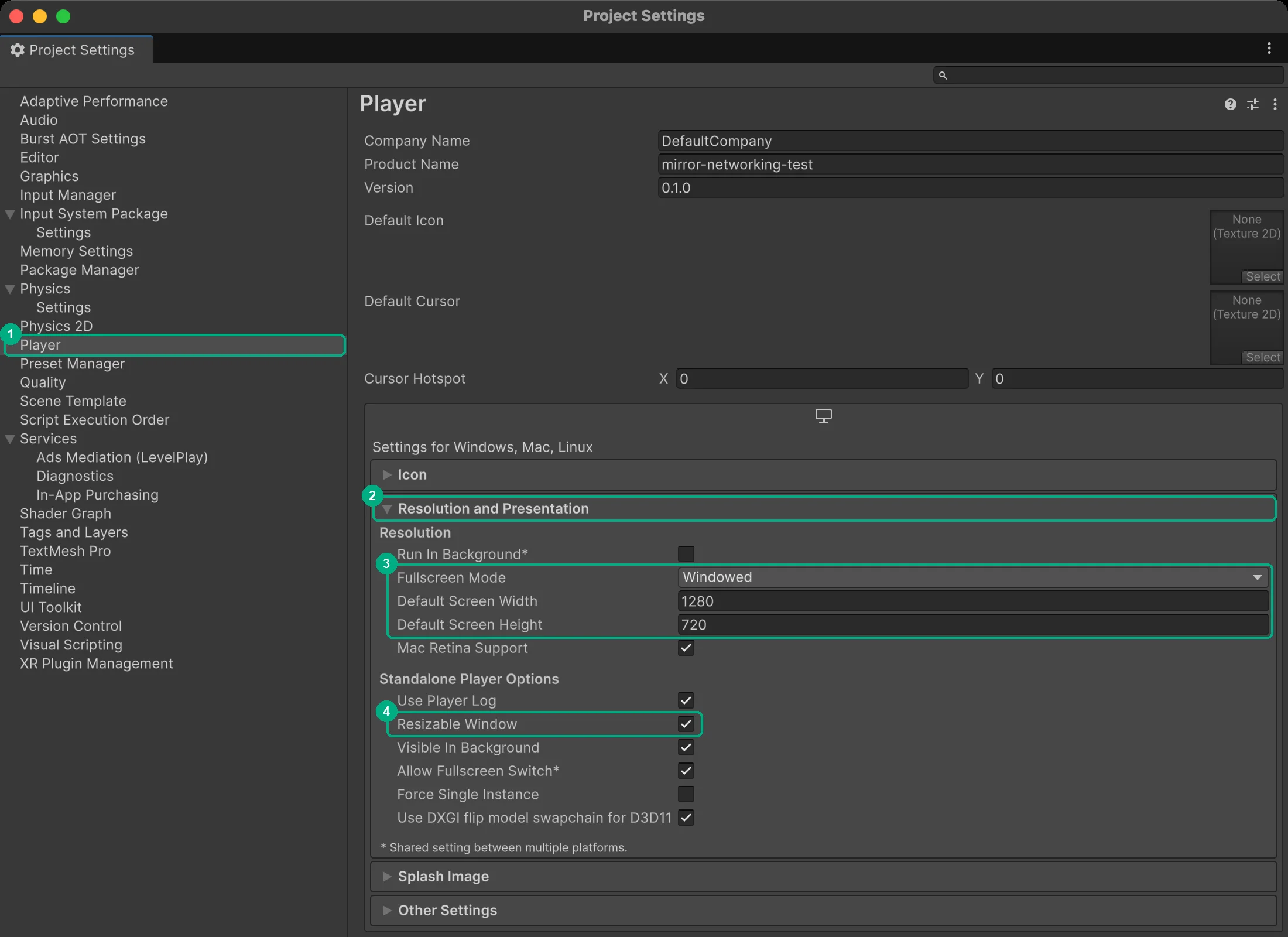
Go to Edit > Project Settings > Player and open Resolution and Presentation. Set Fullscreen Mode to Windowed, the size to 1280 x 720 and check Resizable Window. Otherwise your build opens fullscreen and you cannot see the Editor next to it.
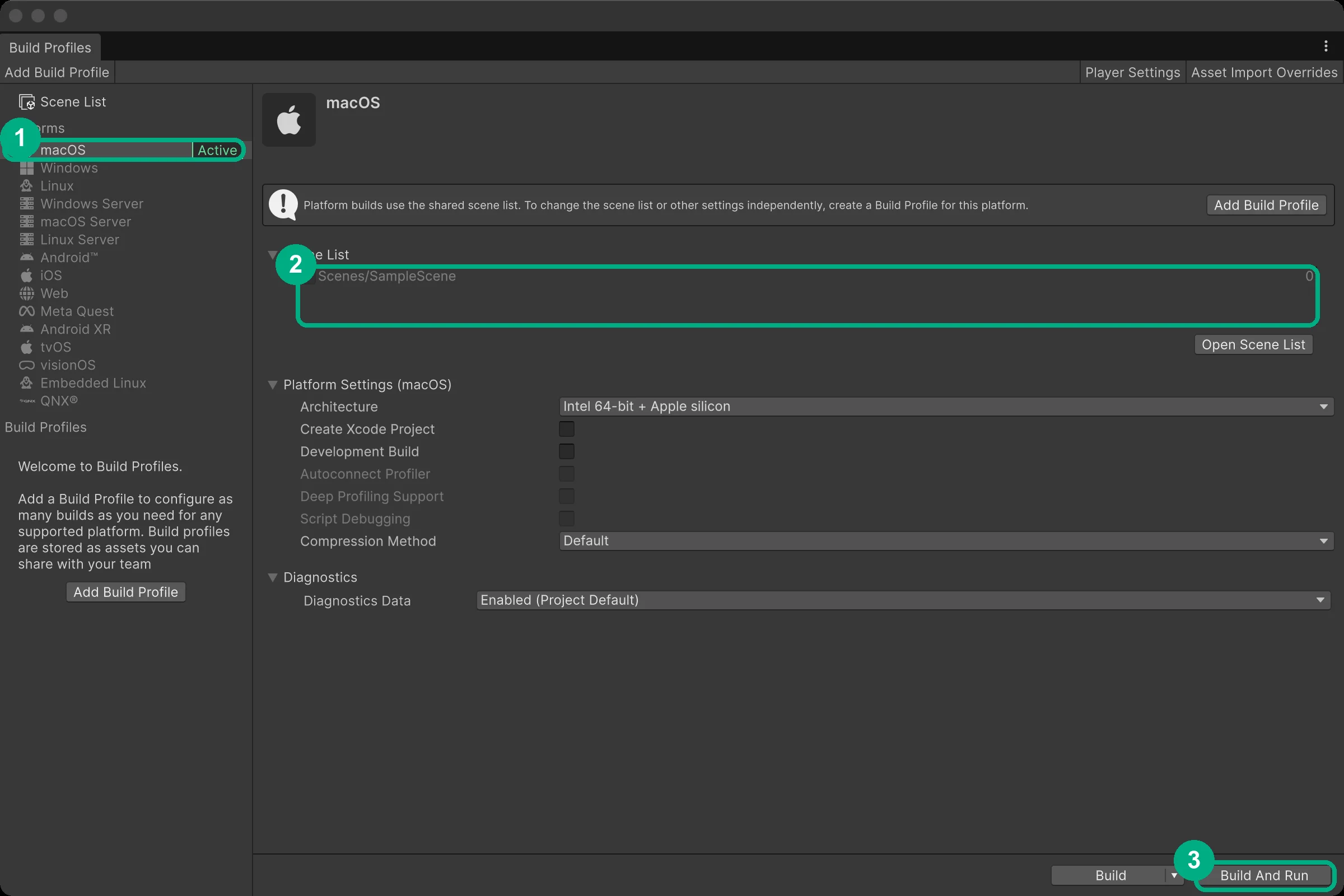
Go to File > Build Profiles, make sure your scene is checked in the Scene List and click Build And Run.
When the build opens, look at the top-left corner of the window. That is the Network Manager HUD. Click Host (Server + Client). The host is the server and a player at the same time.
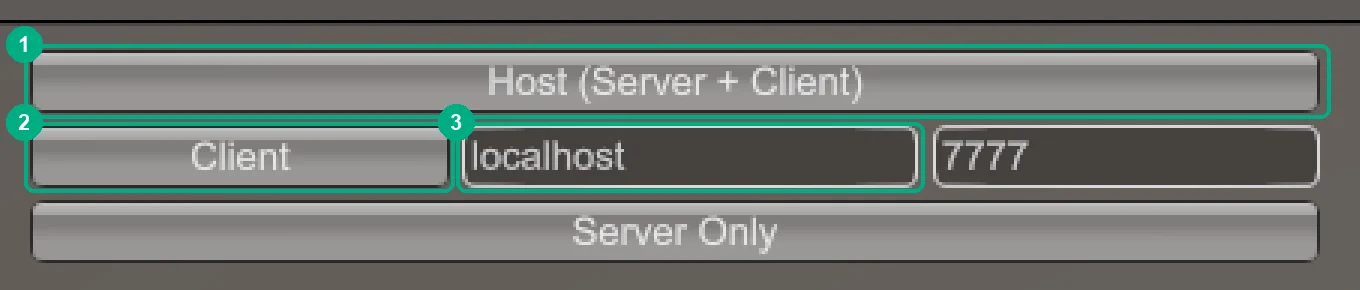
Back in Unity, press Play and click Client in the same HUD in the top-left corner of the Game view. The address next to it is already set to
localhost, which means your own computer.
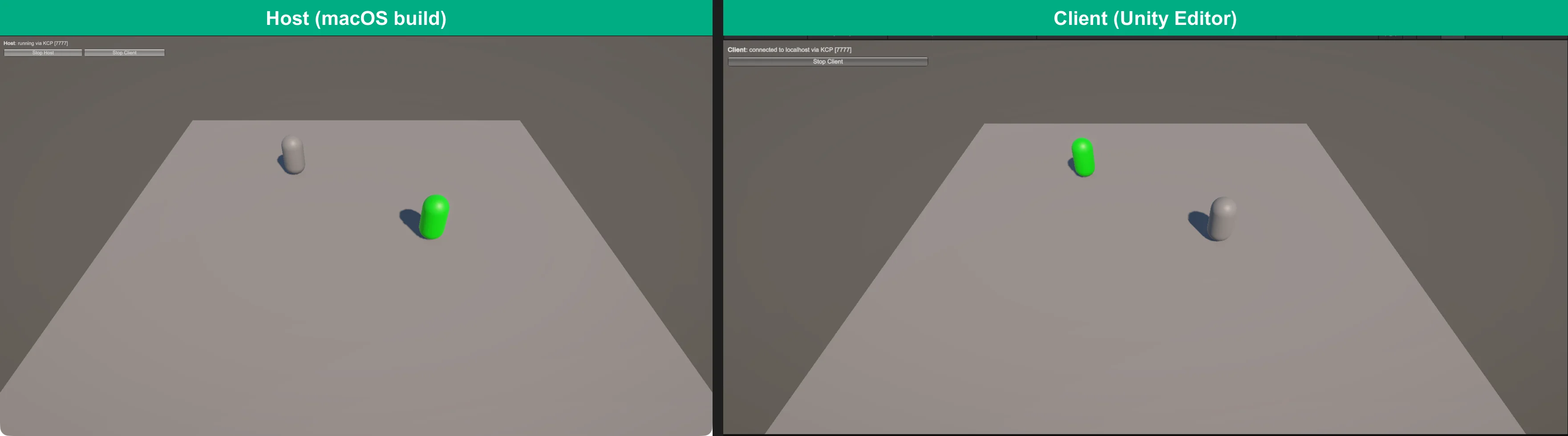
You should now see two capsules in both windows. Your own player is green and the other player is gray. Move with W, A, S and D, and the other window follows along.
What is happening behind the scenes?
When my students learn how Unity works and then try to make their first multiplayer game, it is a completely different experience for them. They do not understand the difference between the client and the host, or who has authority over what, so everything feels confusing. That is why I want you to understand what each piece does before you build anything on top of it. Here is a short tour of every part we used, nothing too deep.
What is the Network Manager?
The Network Manager is the brain of a Mirror game. It starts and stops the host, the server and the client, holds the connection settings like the address and the transport, and spawns a player object for every client that connects. You only want one in your scene, and Mirror logs an error if it finds a second one. The Network Manager HUD is only a debug UI on top of it, so in a real game you replace it with your own menu that calls StartHost() and StartClient().
Why does the player have to be a prefab?
When a client connects, the server does not send the whole player object over the network. It sends a small message that says "spawn this prefab at this position", and every client creates its own copy from the prefab it already has in its build. That only works if the server and every client have the exact same prefab, which is why the player has to be a prefab and not an object sitting in the scene. It is also why we deleted the Player from the scene. The Network Manager spawns one per connection, and a leftover copy in the scene would be an extra capsule that nobody controls.
What is a Network Identity?
Network Identity is the component that tells Mirror that an object exists on the network. When the object spawns, Mirror gives it a unique network ID, and that ID is how the server and the clients agree which capsule is which. It also tracks who owns the object, which is how Mirror knows the green capsule belongs to you. Any object with networked components needs a Network Identity, and Mirror refuses to spawn a player prefab without one.
Why use NetworkBehaviour instead of MonoBehaviour?
NetworkBehaviour is a MonoBehaviour with networking added on top, so Start, Update and everything else you know still works. What it adds are properties like isLocalPlayer, isServer and isOwned, which tell the script where it is running and who it belongs to. Every copy of the game runs every script, so the host runs PlayerMovement for both capsules and the client does too. Without the isLocalPlayer check, your keyboard would try to move every capsule on your screen, and OnStartLocalPlayer is the reason only your own capsule turns green. NetworkBehaviour also unlocks [SyncVar], [Command] and [ClientRpc], which you need as soon as you sync anything beyond position.
What does Network Transform do?
Network Transform watches the position and rotation of an object, and optionally its scale, and sends the changes to everyone else. That is why the capsule you move shows up in the same spot on the other screen. Updates arrive in small steps rather than every frame, so it also smooths the movement on the receiving side with interpolation. Without it, your player would only move on your own screen.
Should you use Reliable or Unreliable Network Transform?
To understand the difference, you need to know the two basic ways computers send data over the internet. TCP guarantees that every message arrives, in order. If a packet gets lost, it is sent again and everything behind it waits. UDP sends packets and moves on, without caring if some get lost or arrive out of order, which makes it faster and gives it less delay.
Mirror's default transport, KCP, runs on UDP but adds its own reliable channel on top, so one connection gives you both options. Network Transform (Reliable) sends over the reliable channel, and only when something changes, with compressed data, so it uses little bandwidth. Network Transform (Unreliable) sends over the unreliable channel. Lost updates are never sent again, which keeps the delay very low, but it uses more bandwidth. Mirror's Network Transform docs sum it up as low bandwidth for Reliable and extremely low latency for Unreliable.
For most games, including small co-op games, start with Reliable. Switch to Unreliable for fast-paced games like shooters, where the newest position matters more than an old one that got lost on the way.
What is server authority?
Authority answers one question: who decides where an object really is? With server authority, the server is the boss. Clients only send what they want to do, like "I pressed W", and the server moves the player and tells everyone the result. With client authority, the client moves its own player and the server trusts whatever position it receives.
That is exactly what the Sync Direction setting on Network Transform controls. Server To Client means the server owns the transform and sends it to the clients, which is server authority. Client To Server means the client that owns the object moves it and sends its position to the server, which then shares it with everyone else. We used Client To Server because our PlayerMovement script moves the capsule directly on the client, and it is the simplest way to get two players moving.
In real production, the problem with client authority is cheating. A modified client can send any position it wants and teleport across the map. For a competitive game you want server authority, where the client sends its input with a [Command] and the server moves the player. That is more work, and you usually need client-side prediction so movement does not feel delayed. For a co-op game you play with friends, client authority is often good enough, because nobody gains much by cheating against their own friends.
Why use Round Robin for spawning players?
Round Robin means the Network Manager takes turns going through the spawn points. Each new player gets the next point in the list, and after the last one it starts over from the first. The other option, Random, picks a random spawn point for every player, so two players can easily land on the same one. If you did not add any Network Start Positions at all, Mirror would spawn every player at the prefab's own position, and both capsules would end up inside each other in the middle of the map.
How do you test multiplayer without making a build?
Back in the day, testing multiplayer in Unity meant making builds. You needed two copies of the game running, so you made a build, started it, connected it to a second copy and only then saw if your change worked. If it did not, you fixed it and made another build. It was a very slow process, and the build in the previous section alone took three minutes on my Mac. With Multiplayer Play Mode, that is now the past.
Multiplayer Play Mode, or MPPM for short, is a Unity package that runs up to three extra players next to your main Editor. Unity calls them virtual players. They share the same project as your Editor, so every change you make shows up in them without a build.
How do you install Multiplayer Play Mode?
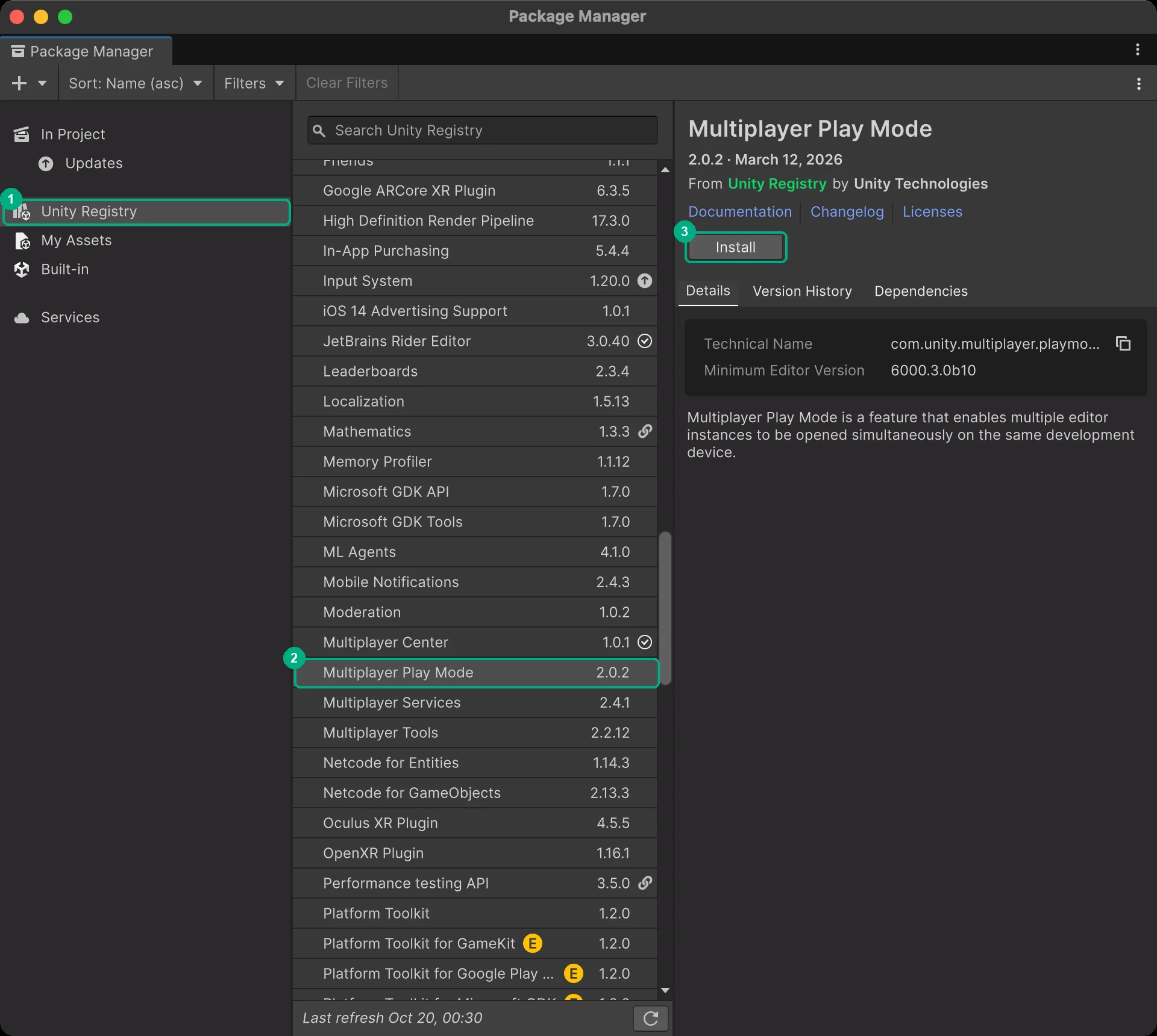
Go to Window > Package Management > Package Manager and select Unity Registry on the left.
Find Multiplayer Play Mode in the list and click Install. I am using version 2.0.2, which works only with Unity 6.3 and newer.
Restart the Unity Editor. In Unity 6.3, Multiplayer Play Mode lives inside the engine and the package only switches it on, so its menu items do not show up until you restart.
How do you add a second player?
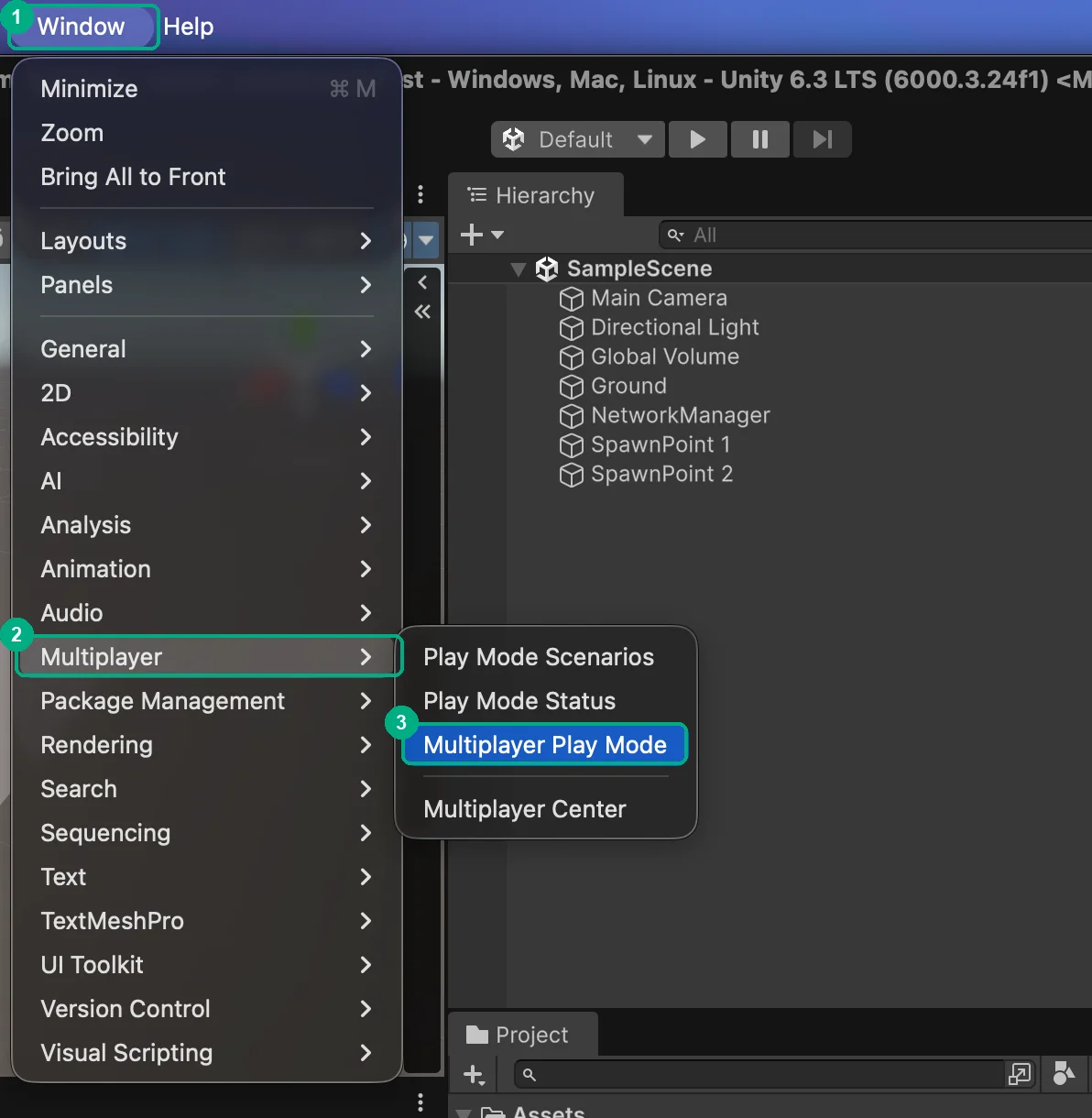
Go to Window > Multiplayer > Multiplayer Play Mode.
Check Player 2. The first launch takes a little while. When it is ready, Player 2 shows as Active and a new window called Player 2 opens with its own Game view and Console.
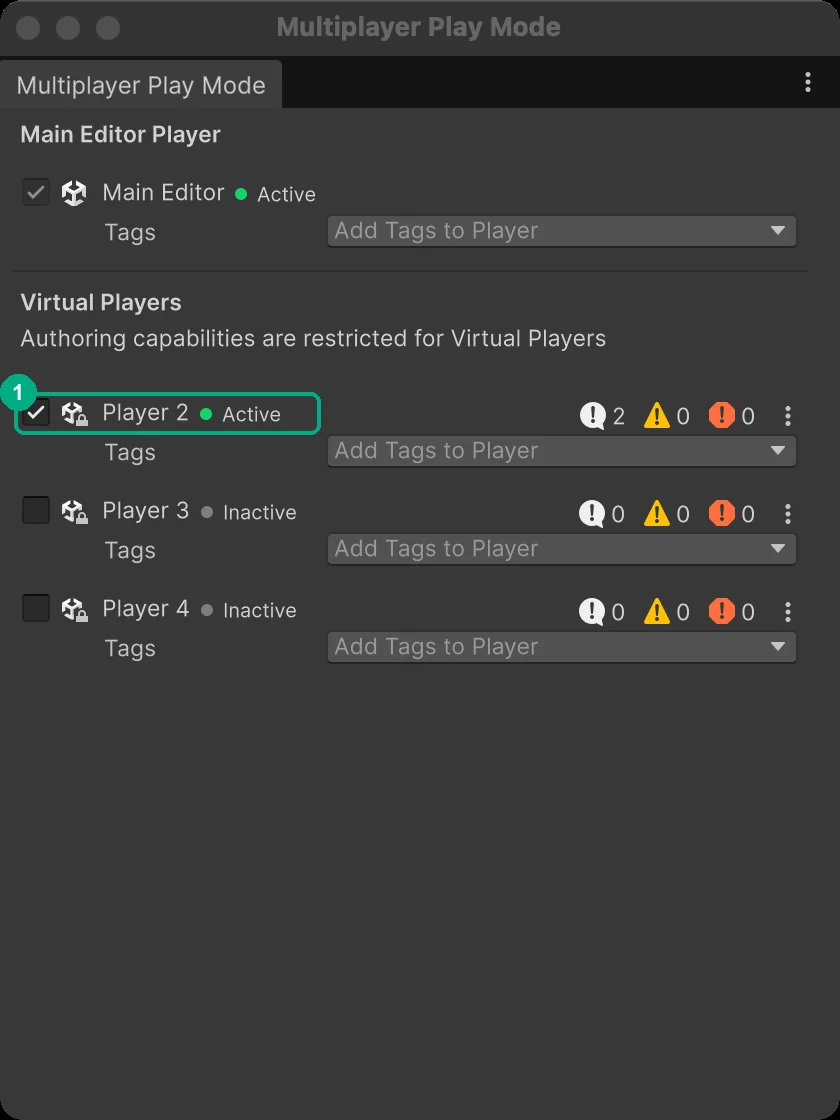
You can only edit your project in the main Editor. Player 2 is there to play, which is why the window says that authoring is restricted for virtual players.
How do you connect the two players?
- Press Play in the main Editor. Player 2 enters Play mode together with it.
- In the Game view of the main Editor, click Host (Server + Client) in the HUD in the top-left corner.
- In the Player 2 window, click Client in the same HUD.
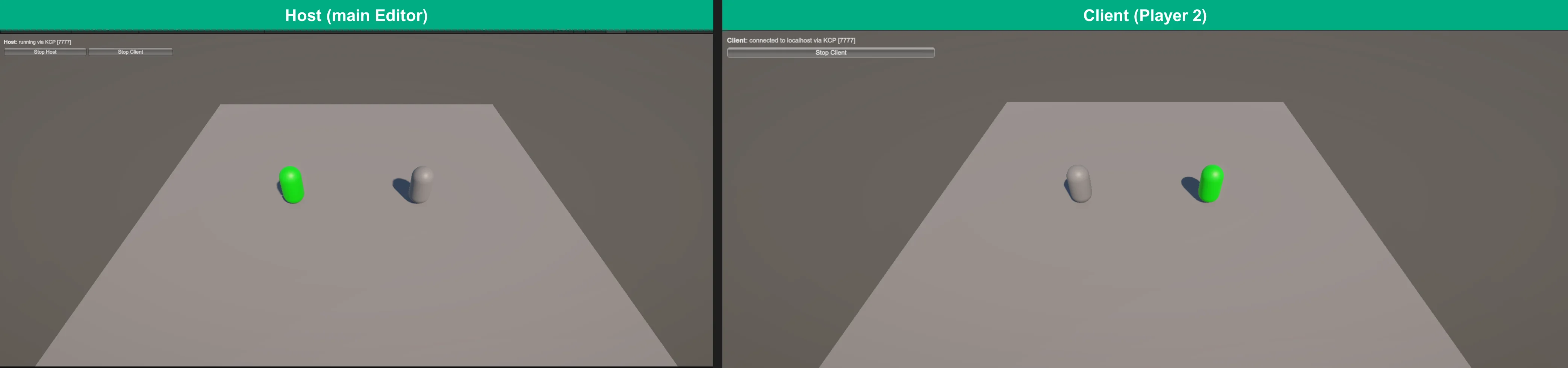
Both players are now in the same scene, exactly like with the build, but this time without building anything. Change some code, press Play again and you are testing it a few seconds later.
How do you sync data over the network with SyncVar and Command?
In one game I built with a student, everything was synced as long as both players joined at the same time from the offline scene. But if one player joined later, they never saw the changes that had already happened in the game. A one-time message, like a [ClientRpc], only reaches the players who are connected at that moment, so anyone who joins later misses it. That is why we use a SyncVar and a hook. A SyncVar always holds the current state, and Mirror sends it to every player who joins, no matter when.
Two capsules walking around is a good start, but a game needs more than positions. In this section we make the players shoot projectiles at each other with Space. Two hits and you are dead, your capsule disappears on every screen, and the other player wins. It is a small game, but it covers the two tools you will use in almost every multiplayer feature: Commands and SyncVars.
What is the difference between a Command and a SyncVar?
A Command is a method that the client calls but that runs on the server. You mark it with [Command] and, by convention, start its name with Cmd. Use a Command whenever a player wants something to happen in the game world, like shooting, opening a door or picking up an item. The client only asks, and the server decides what actually happens. By default, a client can only call Commands on objects it owns, like its own player.
A SyncVar is a variable that the server owns. You mark it with [SyncVar], and every time the server changes its value, Mirror sends the new value to every client, including players who join later. Use a SyncVar for state that everyone needs to see, like health, score or a player name. With the default Sync Direction of Server To Client, a client that changes a SyncVar on its own copy sends nothing, because the data flows from the server to the clients. A SyncVar can also have a hook, a method that runs on every client whenever the value changes, which is the place to react to it.
The simple rule is: when a client wants something to happen, use a Command. When everyone needs to know a value, use a SyncVar. Mirror also has [ClientRpc] for one-time events the server sends to everyone, like playing an explosion sound, but we do not need it for this game. Mirror's docs cover all of them in more detail in Remote Actions and SyncVars.
What data can you send over the network?
Commands and SyncVars do not send objects the way they exist in your game. Mirror turns the data into bytes, sends them and turns them back into data on the other side, so it can only send types it knows how to convert. That covers basic types like int, float, bool and string, Unity types like Vector3, Quaternion and Color, enums, arrays and lists, and your own structs and simple classes built from those types. Mirror generates the code for your own structs and classes automatically when your scripts compile.
What you cannot send is a GameObject with everything inside it. If you pass a GameObject to a Command or put it in a SyncVar, Mirror only sends its network ID, and the other side looks up its own copy of that object. That only works for objects with a Network Identity, and a GameObject without one arrives as null with a warning in the Console. Other Unity objects like a Rigidbody, a Material or a ScriptableObject do not work at all, and Mirror stops with a "Cannot generate writer" error when your scripts compile.
This is also why the server never sends the projectile itself. It sends "spawn this prefab here", and every client builds its own copy from the prefab it already has.
How do you create a networked projectile?
- Right-click in the Hierarchy, choose 3D Object > Sphere, name it
Projectileand set its Scale to 0.3. I also gave it a yellow material so it is easier to see. - On the Sphere Collider, check Is Trigger. We only want to know when it touches a player, not bounce off.
- Add a Rigidbody and check Is Kinematic. Unity only sends trigger events when one of the two objects has a Rigidbody, and Is Kinematic stops physics from pulling the projectile down.
- Add Network Identity, because the server will spawn this object over the network.
- Create a script called
Projectile, paste the code below and add it to the sphere.
using Mirror;
using UnityEngine;

public class Projectile : NetworkBehaviour
{
    public float speed = 15f;
    public float lifetime = 3f;

    public override void OnStartServer()
    {
        Invoke(nameof(DestroySelf), lifetime);
    }

    void Update()
    {
        // Every copy moves itself, so the position doesn't need to be synced.
        transform.position += transform.forward * speed * Time.deltaTime;
    }

    // Only the server checks for hits.
    [ServerCallback]
    void OnTriggerEnter(Collider other)
    {
        PlayerHealth health = other.GetComponentInParent<PlayerHealth>();
        if (health != null) health.TakeDamage();
        DestroySelf();
    }

    void DestroySelf()
    {
        NetworkServer.Destroy(gameObject);
    }
}
The server spawns the projectile and every copy then moves itself forward in Update. It flies in a straight line, so every screen can calculate the same position and we do not need a Network Transform for it. That saves bandwidth. [ServerCallback] makes OnTriggerEnter run only on the server, so only the server decides who got hit. NetworkServer.Destroy removes the projectile from every screen at once.
Drag the
Projectileinto yourPrefabsfolder and delete it from the scene.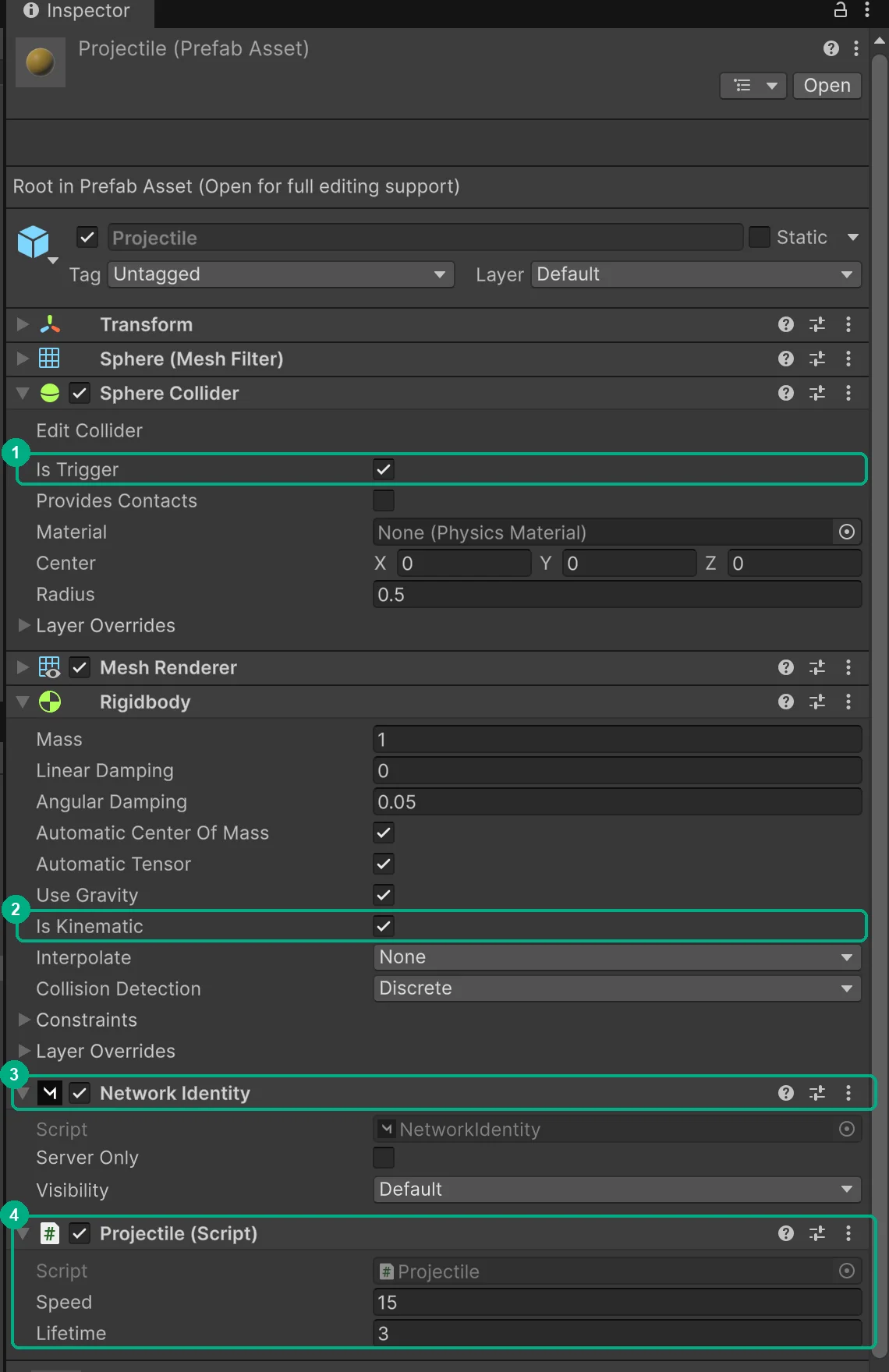
Select the
NetworkManager, scroll down to Registered Spawnable Prefabs, click + and drag theProjectileprefab into the new slot. Mirror can only spawn prefabs it knows about. The player prefab is registered through the Player Prefab field, but everything else you spawn has to be in this list. If you forget, the client logs "Failed to spawn server object, did you forget to add it to the NetworkManager?" and the projectile never shows up there.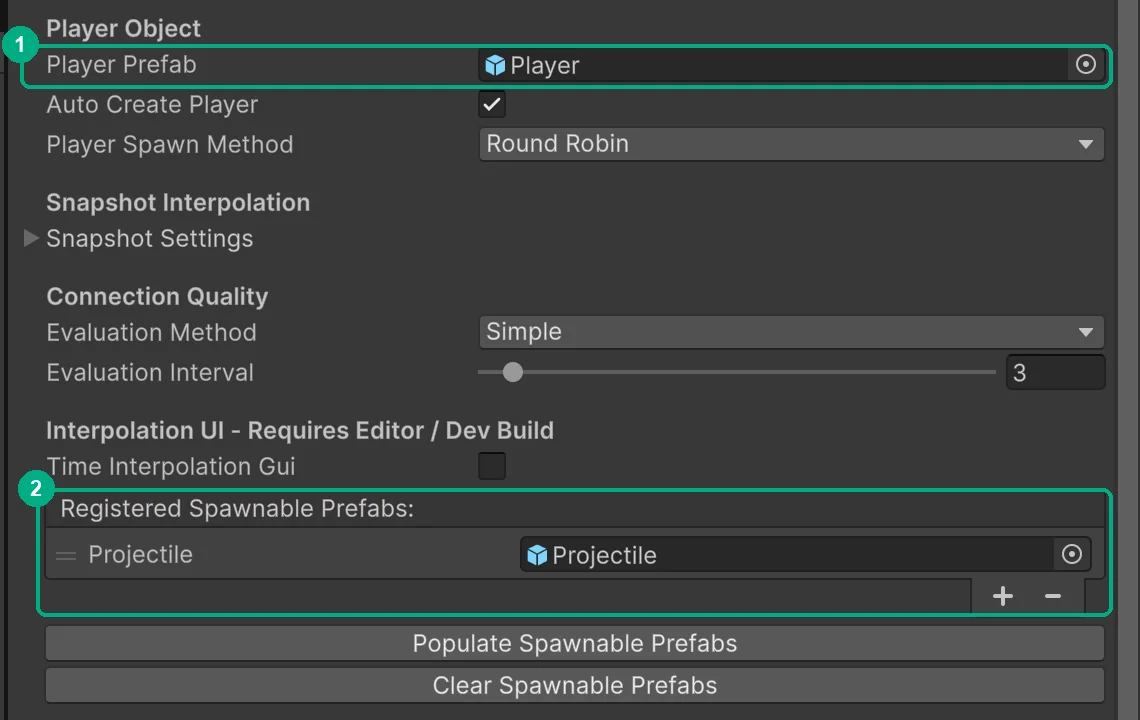
How do you shoot with a Command?
To aim, the player needs to face somewhere. Open the Player prefab, right-click it and add a 3D Object > Cube as a child. Name it Gun, set its Position to (0, 0.3, 0.5) and its Scale to (0.2, 0.2, 0.6), and remove its Box Collider. Then update PlayerMovement, so the player turns in the direction it moves and stops moving once it is dead.
using Mirror;
using UnityEngine;
using UnityEngine.InputSystem;

public class PlayerMovement : NetworkBehaviour
{
    public float speed = 5f;

    public override void OnStartLocalPlayer()
    {
        // Paint your own player green so you can tell it apart from the other one.
        GetComponent<Renderer>().material.color = Color.green;
    }

    void Update()
    {
        // Only move the player this game instance owns.
        if (!isLocalPlayer) return;
        if (GetComponent<PlayerHealth>().isDead) return;

        Keyboard keyboard = Keyboard.current;
        if (keyboard == null) return;

        Vector3 move = Vector3.zero;
        if (keyboard.wKey.isPressed) move.z += 1;
        if (keyboard.sKey.isPressed) move.z -= 1;
        if (keyboard.dKey.isPressed) move.x += 1;
        if (keyboard.aKey.isPressed) move.x -= 1;

        transform.position += move.normalized * speed * Time.deltaTime;

        // Face the direction you move, so you shoot that way.
        if (move != Vector3.zero) transform.rotation = Quaternion.LookRotation(move);
    }
}
Now create a script called PlayerShooting and add it to the Player prefab.
using Mirror;
using UnityEngine;
using UnityEngine.InputSystem;

public class PlayerShooting : NetworkBehaviour
{
    public GameObject projectilePrefab;

    void Update()
    {
        if (!isLocalPlayer) return;
        if (GetComponent<PlayerHealth>().isDead) return;

        if (Keyboard.current.spaceKey.wasPressedThisFrame)
            CmdShoot();
    }

    // The client calls this, but it runs on the server.
    [Command]
    void CmdShoot()
    {
        Vector3 position = transform.position + transform.forward;
        GameObject projectile = Instantiate(projectilePrefab, position, transform.rotation);
        NetworkServer.Spawn(projectile);
    }
}
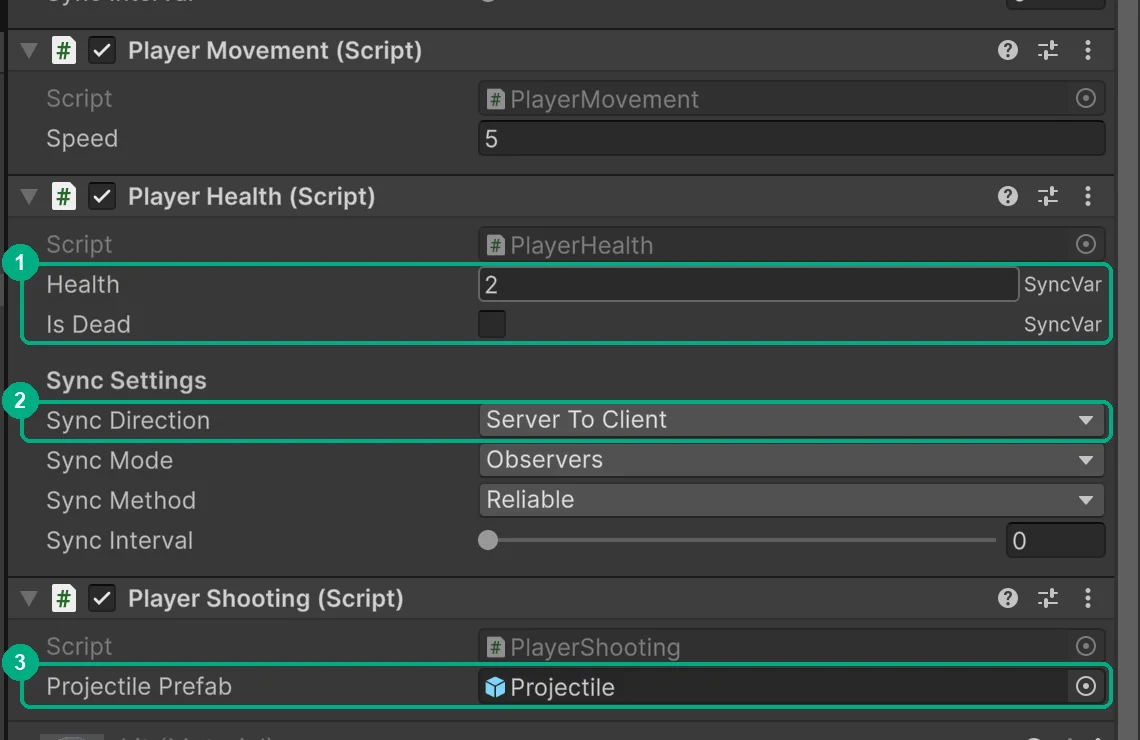
When you press Space, only your own player calls CmdShoot(). Because of the [Command] attribute, the call is sent over the network and the method runs on the server, even though your client called it. The server creates the projectile with Instantiate and then calls NetworkServer.Spawn, which spawns it on every client. If you only called Instantiate on the client, the projectile would exist on your screen and nowhere else. Drag the Projectile prefab into the Projectile Prefab field of the PlayerShooting component.
How do you sync health with a SyncVar?
Create a script called PlayerHealth and add it to the Player prefab.
using Mirror;
using UnityEngine;

public class PlayerHealth : NetworkBehaviour
{
    [SyncVar] public int health = 2;
    [SyncVar(hook = nameof(OnIsDeadChanged))] public bool isDead;

    // Only the server changes health. Mirror then sends the new values to every client.
    [Server]
    public void TakeDamage()
    {
        if (isDead) return;

        health--;
        if (health <= 0) isDead = true;
    }

    // Runs on every client when isDead changes.
    void OnIsDeadChanged(bool oldValue, bool newValue)
    {
        foreach (Renderer r in GetComponentsInChildren<Renderer>())
            r.enabled = !newValue;
        GetComponent<Collider>().enabled = !newValue;
    }

    void OnGUI()
    {
        if (!isLocalPlayer) return;

        string text = isDead ? "You lost" : $"Health: {health}";
        foreach (PlayerHealth player in FindObjectsByType<PlayerHealth>(FindObjectsSortMode.None))
            if (player != this && player.isDead) text = "You won";

        GUI.Label(new Rect(10, 100, 400, 50), text, new GUIStyle { fontSize = 32, normal = { textColor = Color.white } });
    }
}
health and isDead are SyncVars, so only the server changes them and Mirror sends every change to all clients. The [Server] attribute on TakeDamage makes sure it only ever runs on the server, which is where the projectile calls it from. When isDead turns true, the OnIsDeadChanged hook runs on every client and hides the dead player by turning off its renderers and its collider. OnGUI draws a small label for your own player with your health, "You lost" or "You won".
Notice that in the Inspector, both fields have a small SyncVar label, and the Sync Direction of PlayerHealth is Server To Client. That is the server authority from earlier. The movement trusts the client, but health does not, so nobody can give themselves extra lives.
How do you test the shooting?
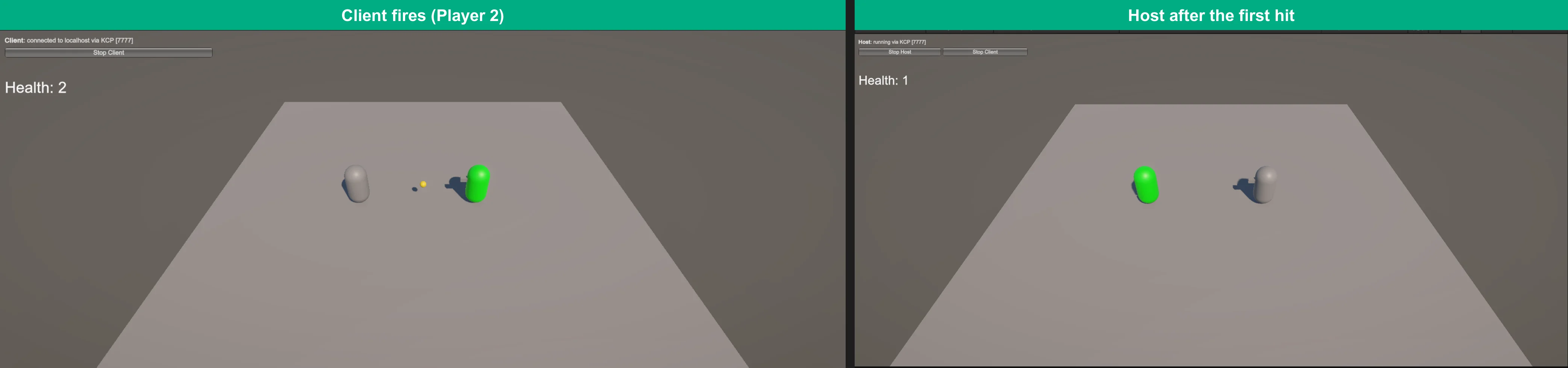
Press Play with Player 2 still active in Multiplayer Play Mode. Click Host (Server + Client) in the main Editor and Client in Player 2. Move with W, A, S and D to turn toward the other player and press Space to shoot.
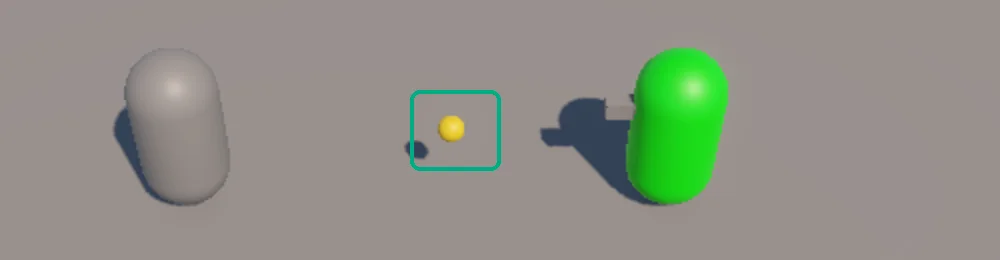
After the first hit, the host's label drops to Health: 1. The server changed the SyncVar, and Mirror sent the new value to everyone.
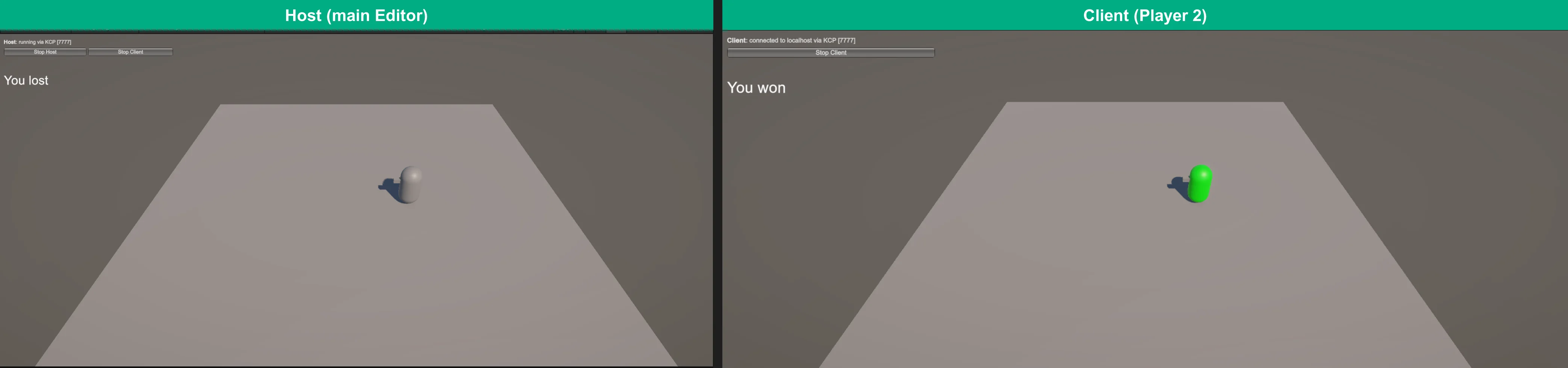
After the second hit, isDead turns true and the hook hides the host on both screens. The host sees "You lost" and the client sees "You won".
Can you play with your friends over localhost?
No, and this is something a lot of beginners get wrong. localhost is a name for your own computer, so a client that connects to localhost can only reach a game running on the same machine. That is why it works with Multiplayer Play Mode and with a build next to the Editor, and why it will never connect your friend's computer to yours.
If your friend is on the same Wi-Fi, they can type your computer's local IP address instead of localhost. To play over the internet, you need one of these:
- Port forwarding. You tell your router to send traffic on port 7777 to your computer, and your friend connects to your public IP address. KCP runs on UDP, so you forward UDP. It is free, but every host has to change their router settings, which is a lot to ask from players.
- A relay. Both players connect to a server in the middle that passes the data between them, so nobody has to touch their router. Steam has one built in, which is how many small co-op games on Steam work with Mirror.
- A dedicated server. The server runs on a machine in the cloud and every player joins it as a client, which is what the Server Only button in the HUD starts. It costs money to run, but it is the standard for competitive games, where no player should be the host.
