Learn Unity Fast in 2026 with a Skill Tree Roadmap
TL;DR
The Learn Unity roadmap is now a skill tree. 42 nodes in seven categories take you from your first C# script to a game you can finish in Unity 6, and every node comes with a written lesson, a code example, and an exercise. You can mark nodes complete, watch the progress bar climb, and pick up where you left off from your profile. The first node is open to everyone. The rest open with a free account.
The Learn Unity roadmap just got its biggest update since I put it online. The first version was my attempt to map everything in Unity, and it grew to 159 nodes. It looked complete, but it was a checklist, not a path. Most nodes were one screen of text with no script to run and no exercise to build, and nothing told you how far along you were.
So I rebuilt it. The new roadmap has 42 nodes that cover what most Unity projects need, laid out as a skill tree that goes from the basics in the center to advanced topics at the edges. Every node was rewritten with a lesson, a code example, and an exercise, and the map now tracks what you have done. If you read how to actually learn Unity in 2026 in the age of AI, this is the roadmap that article asks you to follow. Here is what changed and what you get out of it.
Table of contents
- Why a skill tree instead of a list?
- What do the 42 nodes cover?
- How does progress tracking work?
- What if you are not signed in?
- Where do you see progress across roadmaps?
- Can you read a topic outside the map?
- What is next for the roadmap?
Why a skill tree instead of a list?
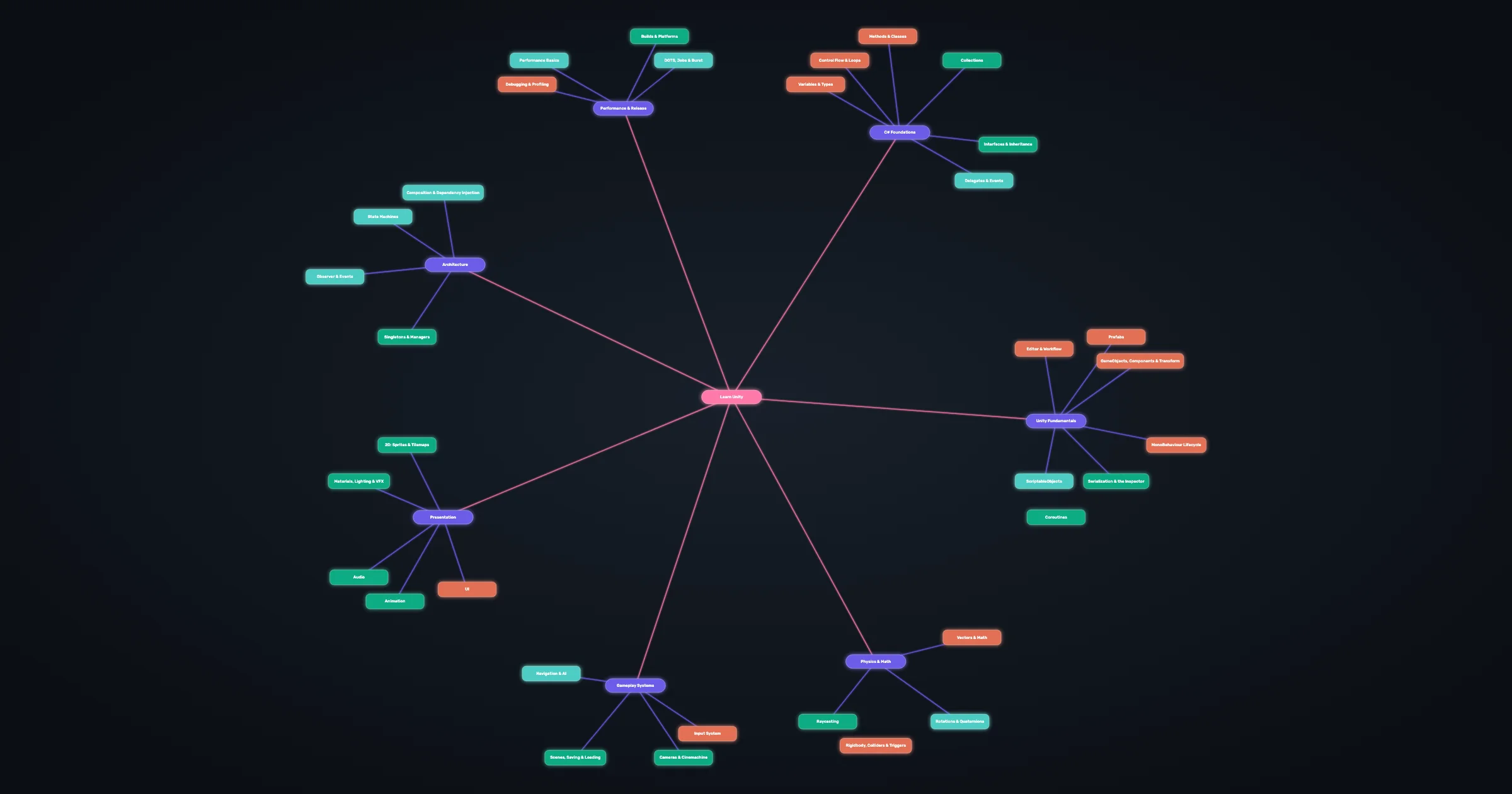
I wanted the roadmap to feel like the skill screen in a game, not a table of contents. When you open it now, the Learn Unity node sits in the center and seven categories spread out around it, with their topics hanging off each one. Basics sit close to the center and advanced topics sit further out, so the shape of the map tells you the order without a single arrow.
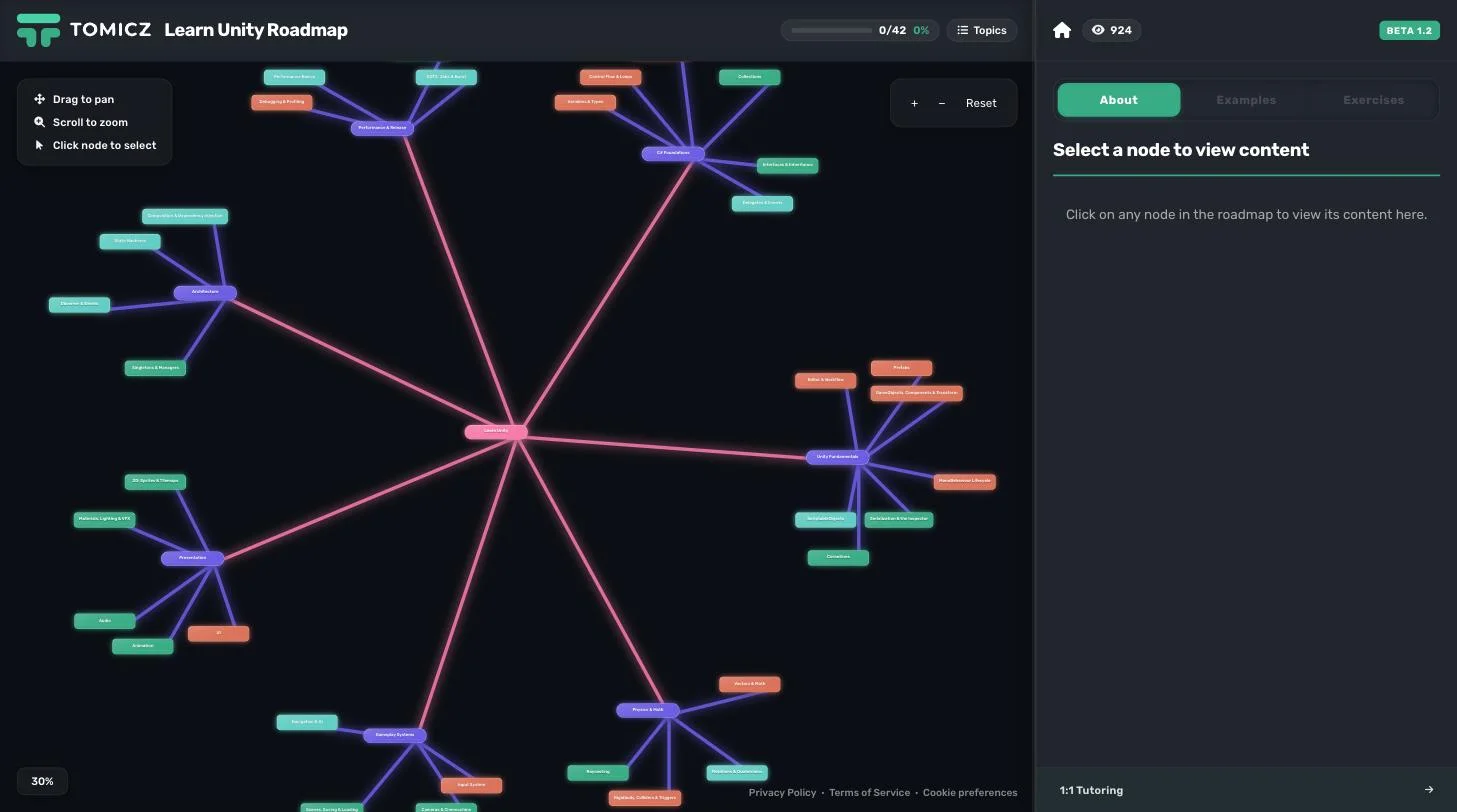
The other reason is motivation. A list of 159 items never feels closer to done. A tree with 42 nodes that light up as you finish them does. Games have used that trick on us for decades, and I see no reason learning Unity should not use it too.
Colors tell you what you are looking at. Purple nodes are categories. Coral nodes are the must-know topics inside a category, green nodes are the standard ones, and teal nodes are the advanced ones you can leave for a second pass.
What do the 42 nodes cover?
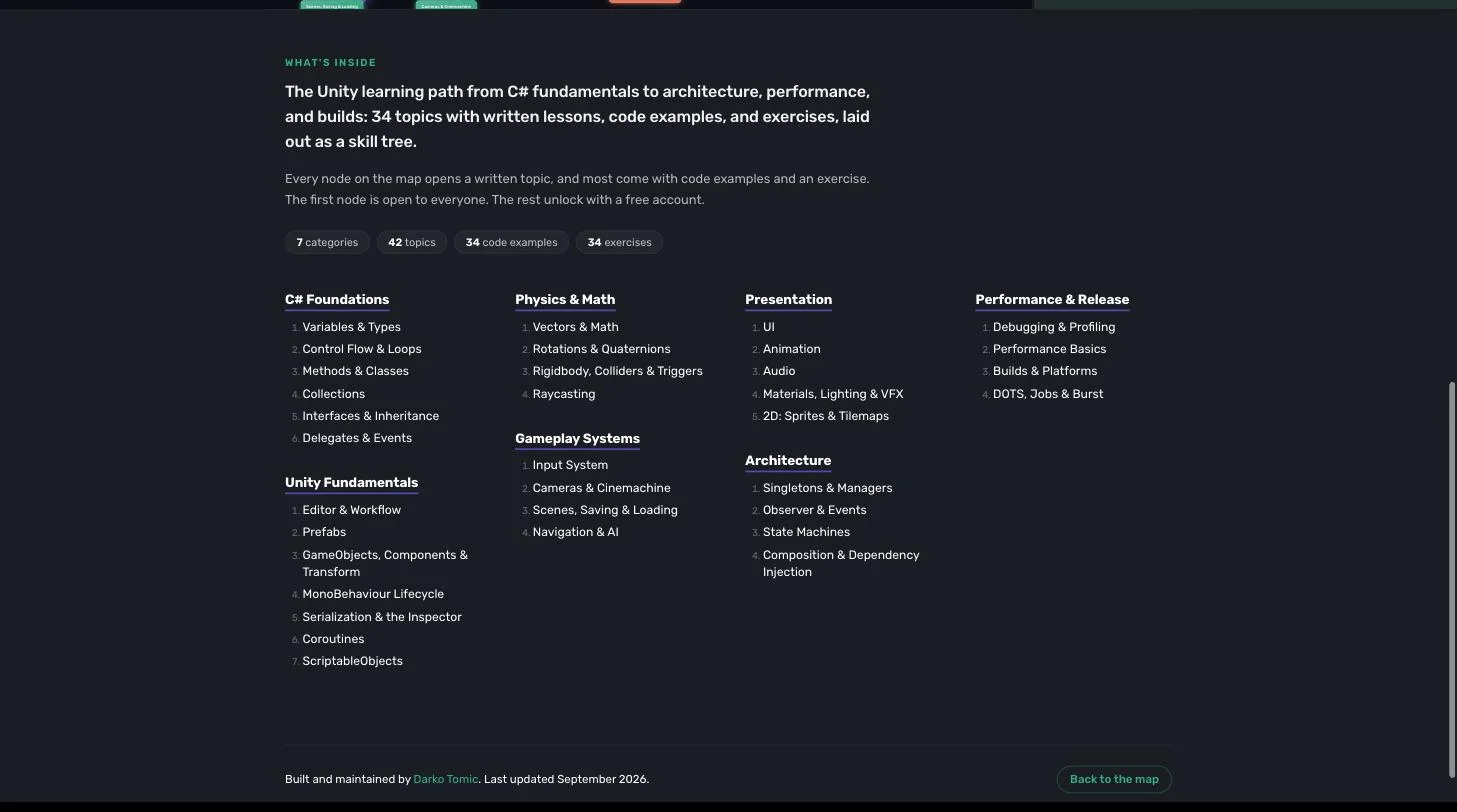
Seven categories, ordered the way the skills build on each other. C# Foundations, Unity Fundamentals, Physics & Math, Gameplay Systems, Presentation, Architecture, and Performance & Release. Each category holds four to seven topics, 34 in total. Together they cover what most Unity projects need most of the time, not everything the engine can do.
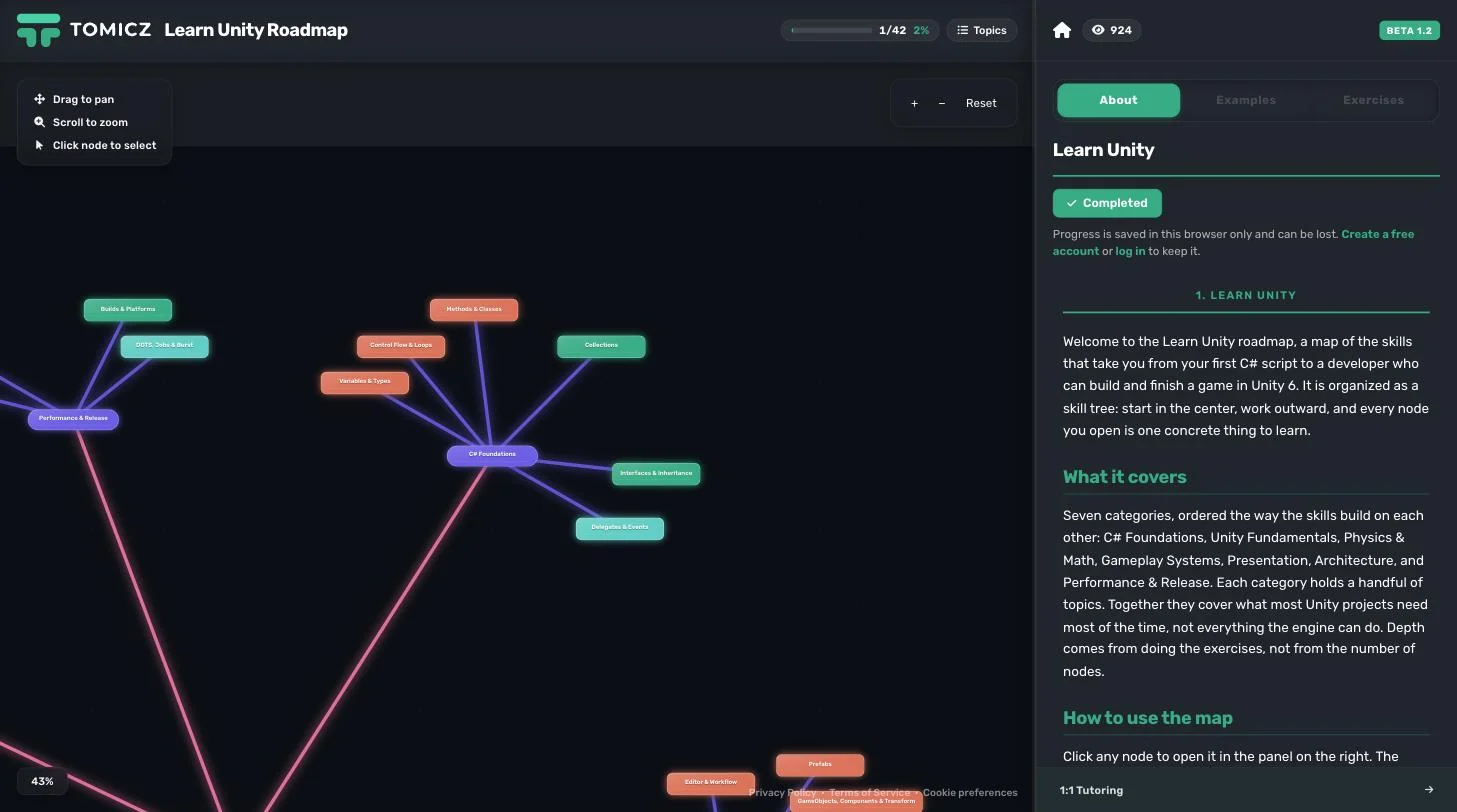
Every topic was written fresh for this update. Click a node and the panel on the right shows three tabs. About is the written lesson, Examples is a complete script you can drop into a project, and Exercises gives you something to build before you move on. The exercise is where the learning happens. Reading about coroutines takes ten minutes. Writing a countdown that does not freeze the game is what makes it stick.
How does progress tracking work?
Open any node and you will find a Mark as complete button under its title. Click it and the node turns gold on the map with a check mark, the progress bar in the header moves, and the counter next to it goes up, 1 of 42, 2 of 42, and so on. Finish everything and the bar turns gold as well.
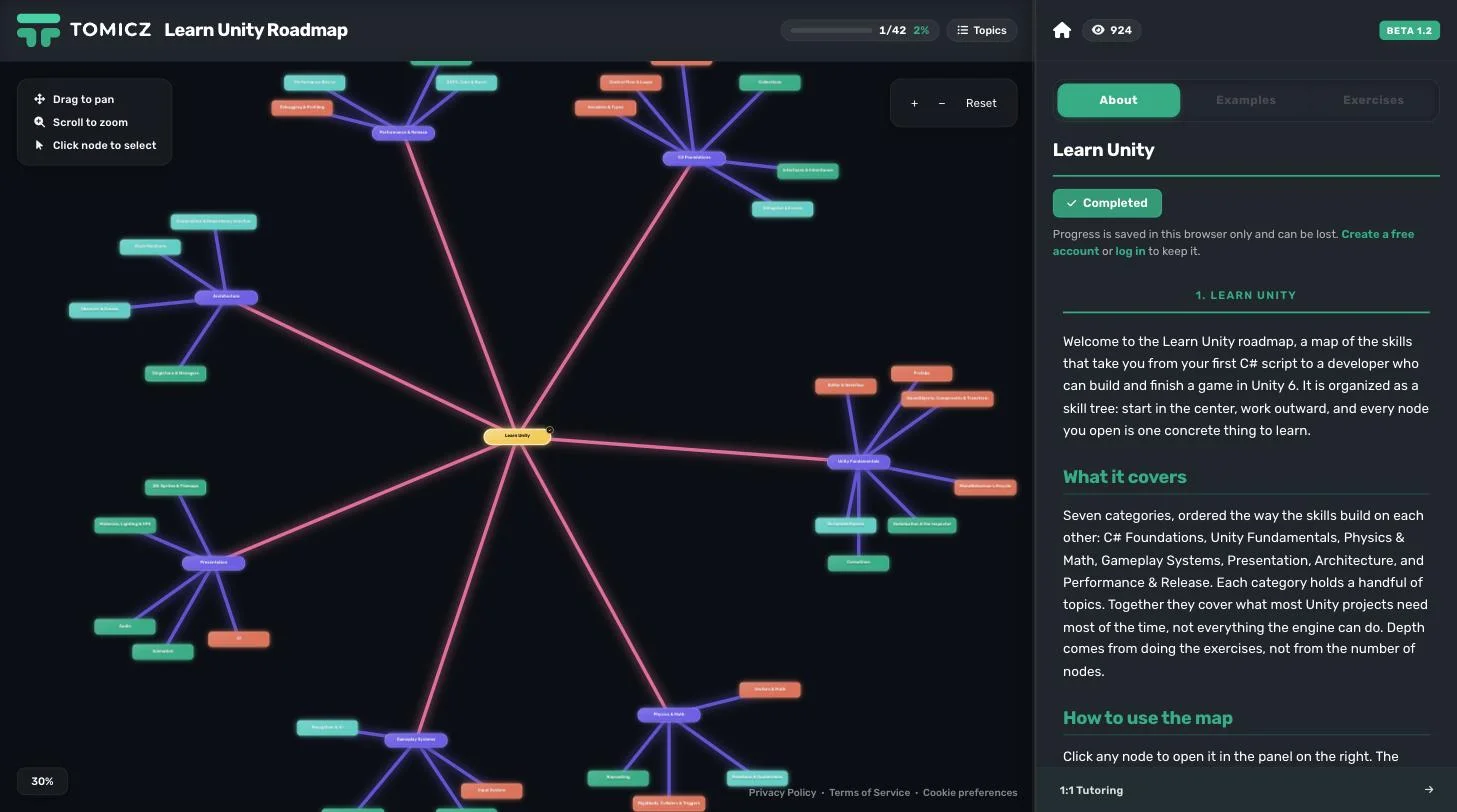
If you change your mind, click the button again and the node goes back to its normal color. Progress is per node, not per exercise, so you decide what complete means for you. My suggestion is to mark a node only after you have done its exercise, not after reading the lesson.
What if you are not signed in?
You can still mark nodes. Without an account, progress is saved in your browser only, and the panel tells you so. It can disappear if you clear your browser data or switch to another device. The moment you create a free account and open the roadmap again, whatever you marked in that browser moves to your account and follows you everywhere. So there is no reason to wait for an account before you start clicking.
Without an account only the first node is readable. The rest of the map is visible, but the lessons open with a free account, same as before.
Where do you see progress across roadmaps?
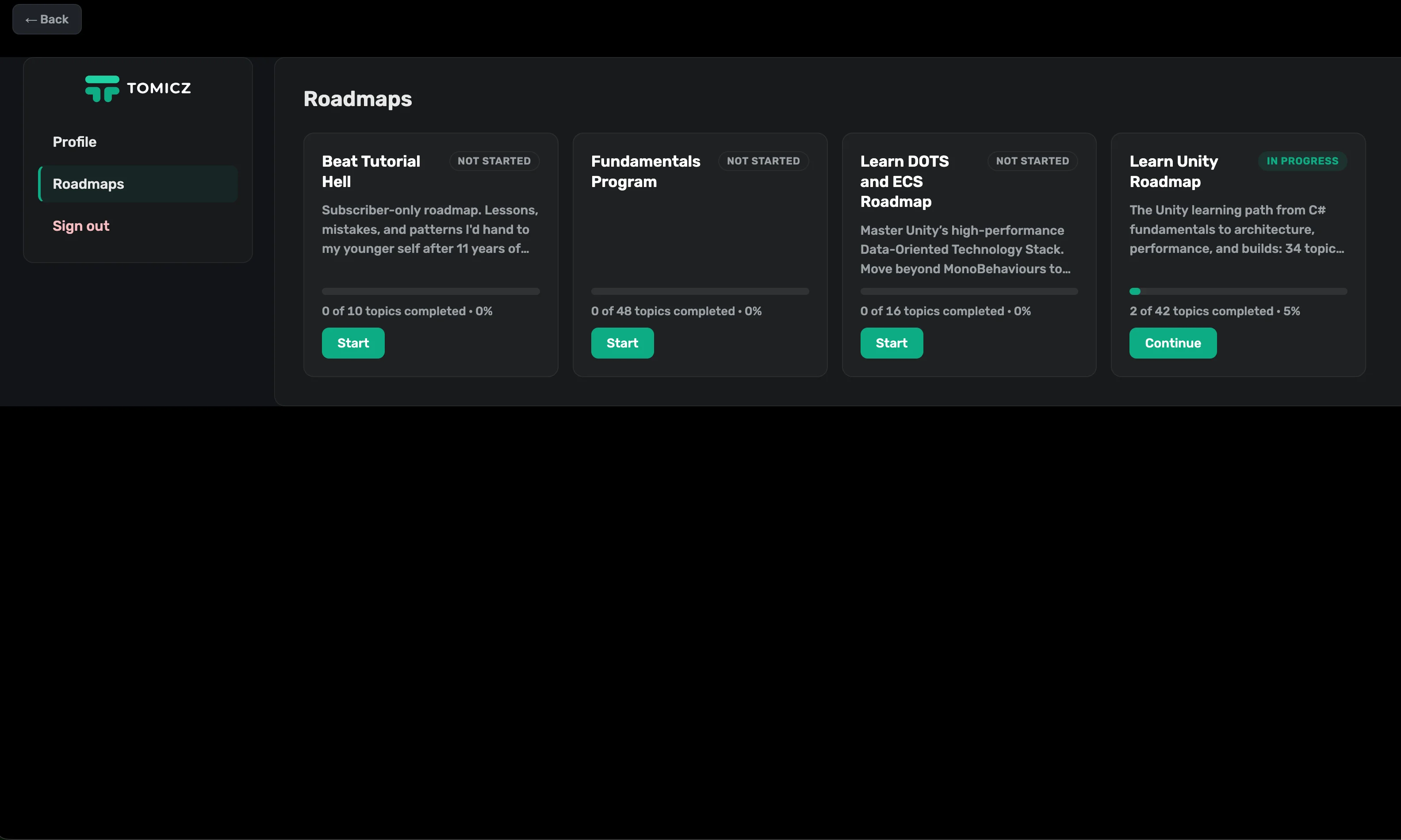
Your profile now has a Roadmaps tab. It lists every roadmap on the site with a status (Not started, In progress, or Completed), a progress bar, and a Continue button that takes you back to the map. Roadmaps you do not have access to yet show up as locked with a note on what opens them, so the Beat Tutorial Hell roadmap, which is free with the email list, sits right next to Learn Unity.
Can you read a topic outside the map?
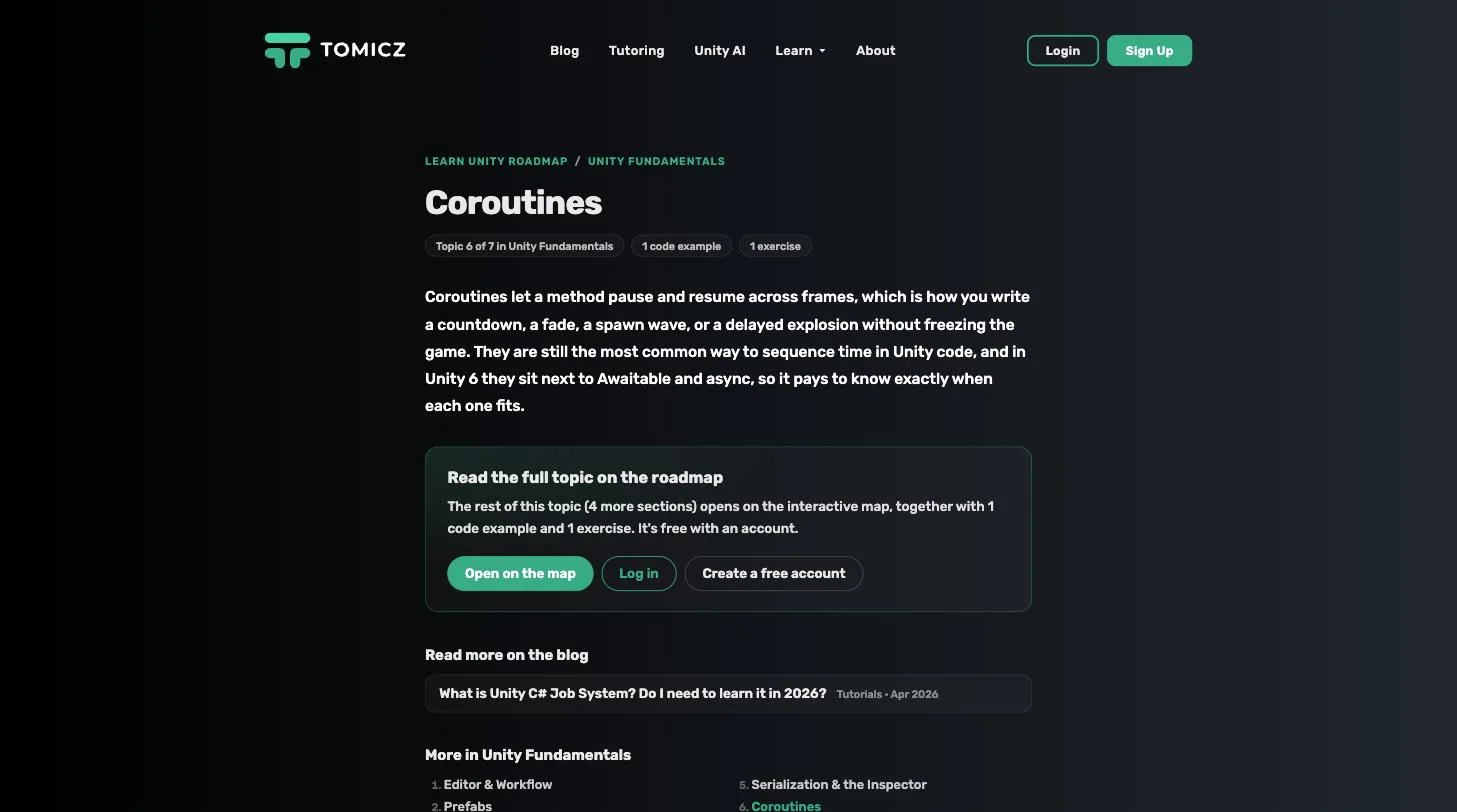
Yes. Every topic now has its own page, for example Coroutines on the Learn Unity roadmap. It shows the first section of the lesson, how many examples and exercises the topic carries, related articles from the blog, and the other topics in the same category. The full lesson opens on the map. These pages exist so you can find a topic from Google or send someone a link, and so the roadmap is browsable before you sign in.
Below the map there is also an outline of all 34 topics grouped by category. The Topics button in the header jumps to it. If you prefer reading a syllabus before you commit to a path, that is the place to start.
What is next for the roadmap?
You will notice a Beta badge in the corner of the panel, Beta 1.2 as I write this. The number goes up with every visible change to the roadmap, so you can tell when something moved. It stays in beta until I am happy with it.
The other two roadmaps, Fundamentals Program and Learn DOTS and ECS, still have the older layout and lessons. They get the same treatment next. If you are new to Unity, start with Learn Unity. Open the center node, read it, do the first exercise, mark it done, and keep going outward.
