Getting started with Unity 6 DOTS and ECS in 2026
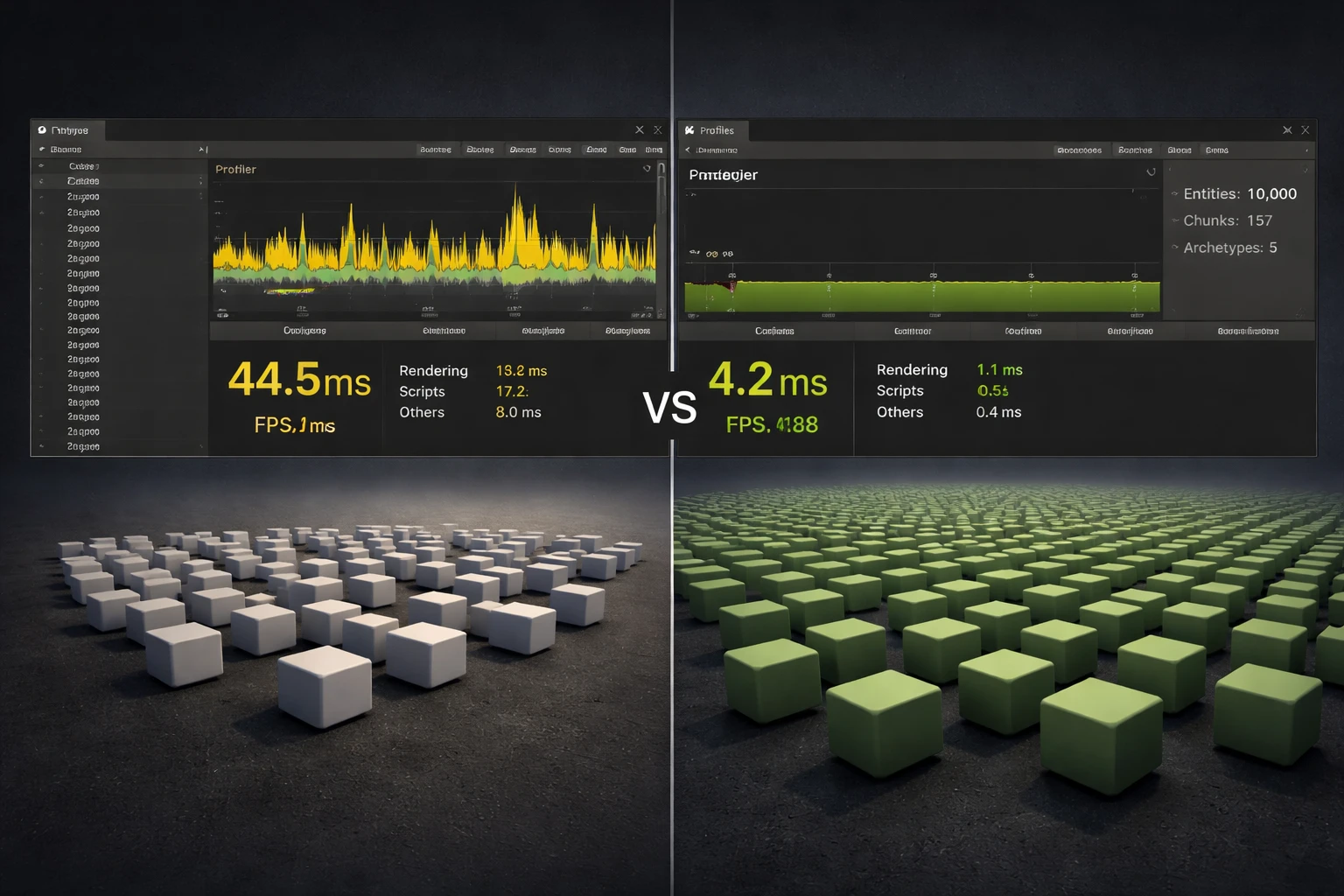
TL;DR: A practical first step into Unity 6 DOTS for MonoBehaviour developers. I install the Entities package, set up SubScenes, bake data, and write a minimal ISystem. Then I build the same cube grid twice, once in GameObjects and once in ECS, and push it to a million cubes to expose the framerate gap.
This post is for Unity developers who already use MonoBehaviour and GameObjects and want a real first step into DOTS and ECS. The goal is simple. You install the packages, set up a minimal Entities workflow, and build the same cube grid twice. First with GameObjects, then with ECS. After that, you raise Amount and compare playable framerate. That is where the difference becomes obvious.
I sometimes push this to around one million cubes to make the gap clearly visible. That number is only useful for stress testing.
If you need more context on what DOTS is, read What is Unity DOTS? Is Unity DOTS worth learning in 2026?. This article is the practical entry point.
What is Unity DOTS and ECS
DOTS stands for Data Oriented Technology Stack. It is built for heavy simulation. Large counts, predictable memory access, and work spread across multiple CPU cores. Instead of thousands of MonoBehaviours each running Update on the main thread, data is laid out so the CPU can read it sequentially, and systems process that data in batches.
When people say DOTS, they usually mean three parts. ECS, the C# Job System, and the Burst compiler. This article focuses on Entities and a minimal ISystem. Jobs and Burst come next.
Getting started with Unity Entities in 2026
I wrote this walkthrough for Unity 6. Menu names, defaults, and package versions match what I see in that release. If you use another Editor version, labels and package numbers may differ slightly.
DOTS is not a single switch you turn on. ECS, packages, baking, and optional Burst all need to line up before anything makes sense. The order matters. Install dependencies first, then set up SubScenes, then author data, then use GetEntity, and finally write a system that actually does work.
Alongside this linear article, I am exploring node style learning on the site. The Learn DOTS and ECS roadmap lays DOTS and ECS out as connected nodes with examples and exercises you open in the Editor, more like a map than one long page. It is still evolving, but if that format fits how you learn, start there and use this post as the practical cube comparison thread.
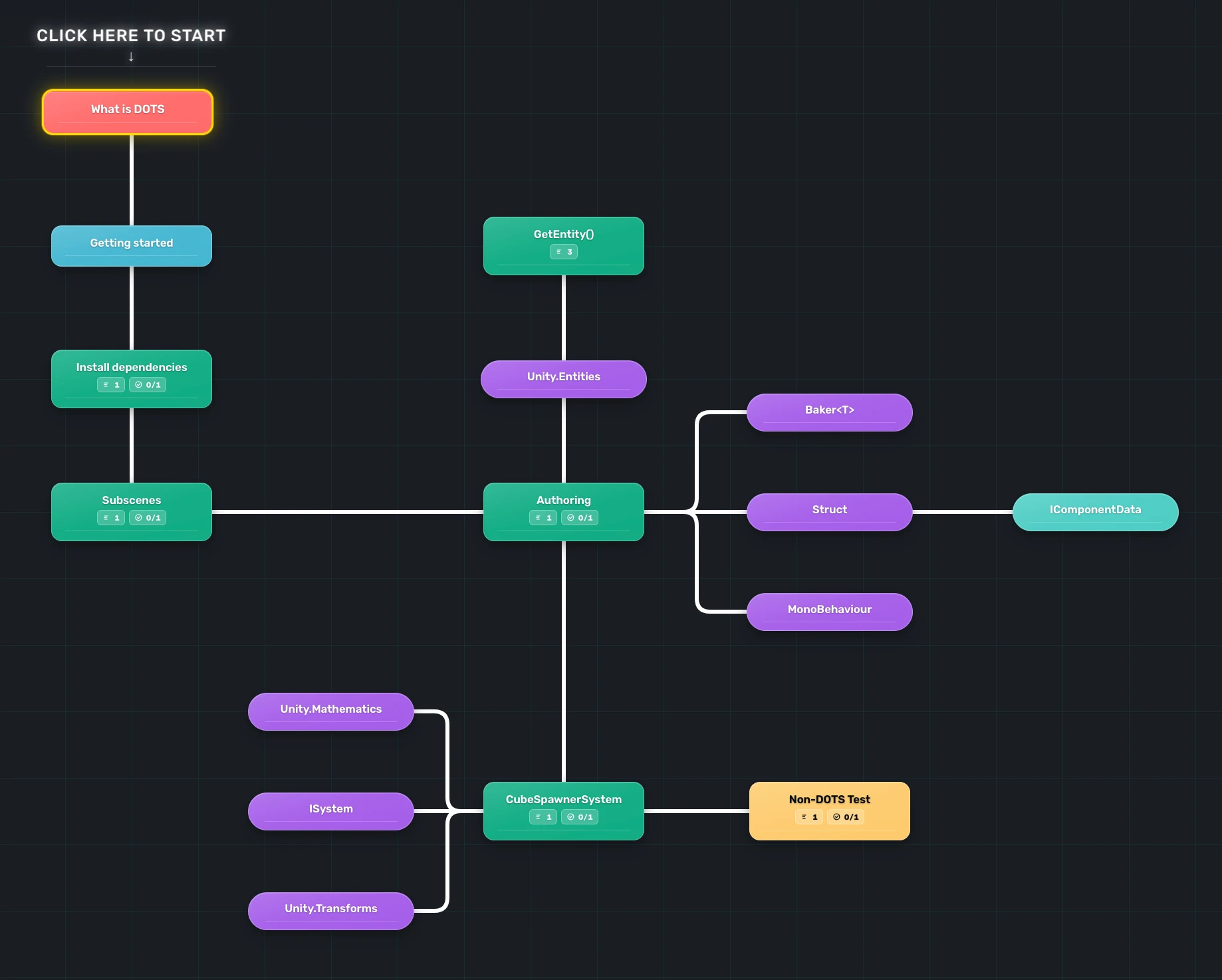
Roadmap: Learn DOTS and ECS (node style path)
Benchmarks and my machine
I run the GameObject versus ECS comparison on a Mac with an M3 Max and 64 GB of RAM. Your numbers will not match mine. I used Unity 6 and the Entities packages that were current when I ran these benchmarks.
Results and Game view Statistics
The MonoBehaviour section and the DOTS benchmark section below each show the same thing. Open Statistics in the Game view, run the scene, and read FPS and ms per frame while you change Amount.
Install Unity Entities and DOTS packages
Go to Window > Package Management > Package Manager so the Package Manager window opens. If your Editor lists it as Window > Package Manager only, that opens the same window. In that window, set the source to Unity Registry. Search the list for Entities and for Entities Graphics, then add both. That is enough to spawn ECS entities and render them in a normal project. Unity will pull Burst, Collections, and other dependencies automatically.
Do not pin versions from older blog posts. Use whatever versions match your installed Editor. Before moving on, make sure the project compiles cleanly. If something breaks here, fix it now. Do not move forward with a broken package setup.
How does MonoBehaviour perform as cube count grows?
Before the ECS path, I want a plain MonoBehaviour version first so the comparison stays honest.
Create a new C# script named MonoGridSpawner.cs, add it to an empty GameObject in your scene, then paste this code.
using UnityEngine;

public class MonoGridSpawner : MonoBehaviour
{
    [Header("Settings")]
    public int Amount = 1000;
    public float Spacing = 1.5f;

    void Start()
    {
        SpawnGrid();
    }

    void SpawnGrid()
    {
        // Calculate the size of one side of the cube (cubic root)
        int sideCount = Mathf.CeilToInt(Mathf.Pow(Amount, 1f / 3f));
        int spawnedCount = 0;

        for (int x = 0; x < sideCount; x++)
        {
            for (int y = 0; y < sideCount; y++)
            {
                for (int z = 0; z < sideCount; z++)
                {
                    if (spawnedCount >= Amount) break;

                    // 1. Create a primitive cube GameObject
                    GameObject cube = GameObject.CreatePrimitive(PrimitiveType.Cube);

                    // 2. Set the position
                    cube.transform.position = new Vector3(x, y, z) * Spacing;

                    // 3. Optional: Set parent to keep hierarchy clean
                    cube.transform.SetParent(this.transform);

                    spawnedCount++;
                }
            }
        }

        Debug.Log($"MonoBehaviour: Spawned {spawnedCount} GameObjects.");
    }
}
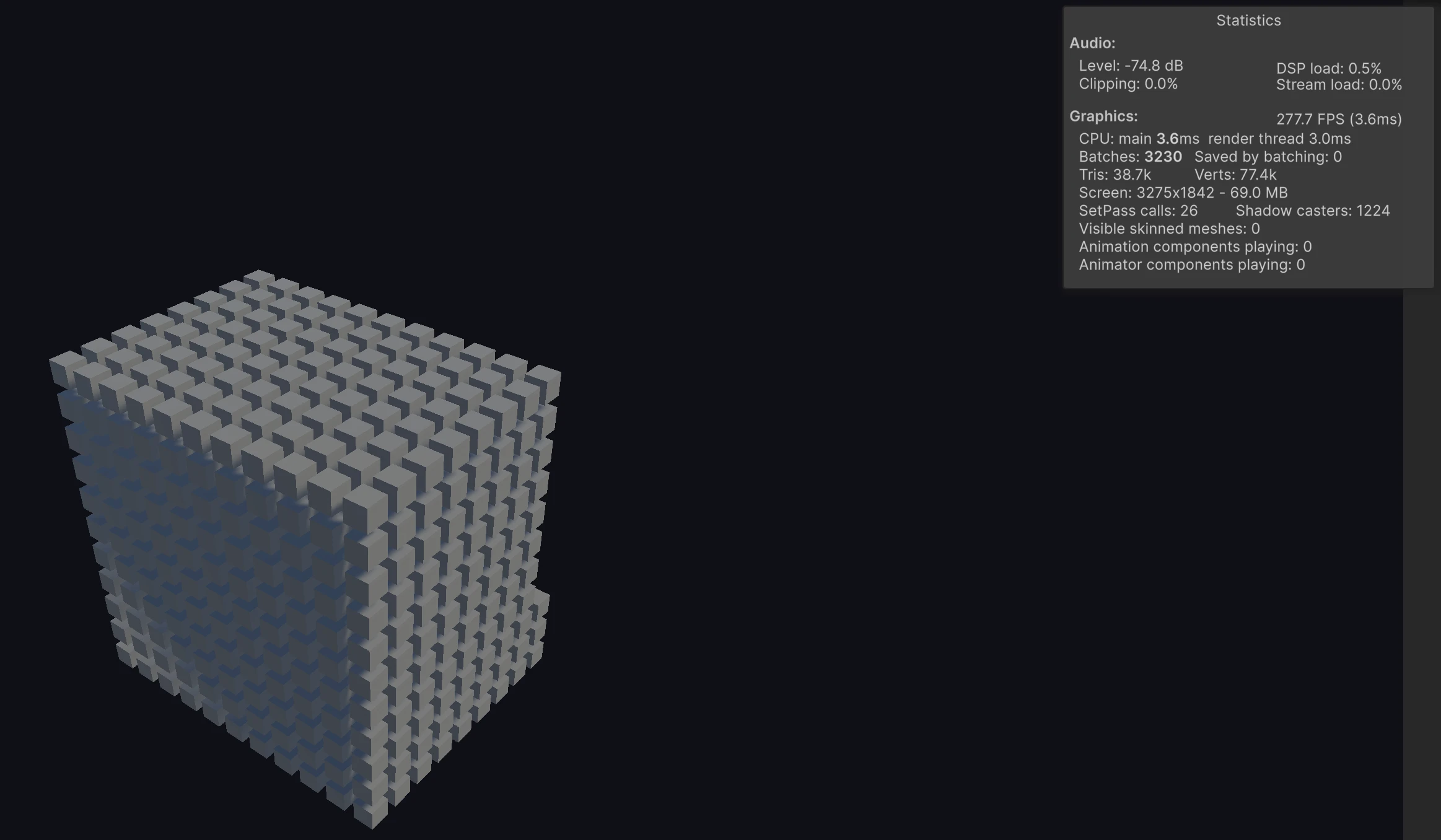
Run the scene with Amount = 1.000, then 10.000, then 100.000, and if you want a hard stress test try 1.000.000 too. Watch the Game view Statistics overlay so you can see how FPS and ms move as you raise the count, before you move to DOTS.
From my runs on M3 Max with 64 GB RAM, 1.000 is fine, 10.000 is still usable, and 100.000 gets heavy fast.
For the first run, I set Amount = 1.000 and pressed Play. The grid spawns quickly, the Editor stays responsive, and this is still in comfortable territory for a plain MonoBehaviour approach. In the Game view Statistics overlay at capture, I read about 277.7 FPS (3.6 ms per frame).
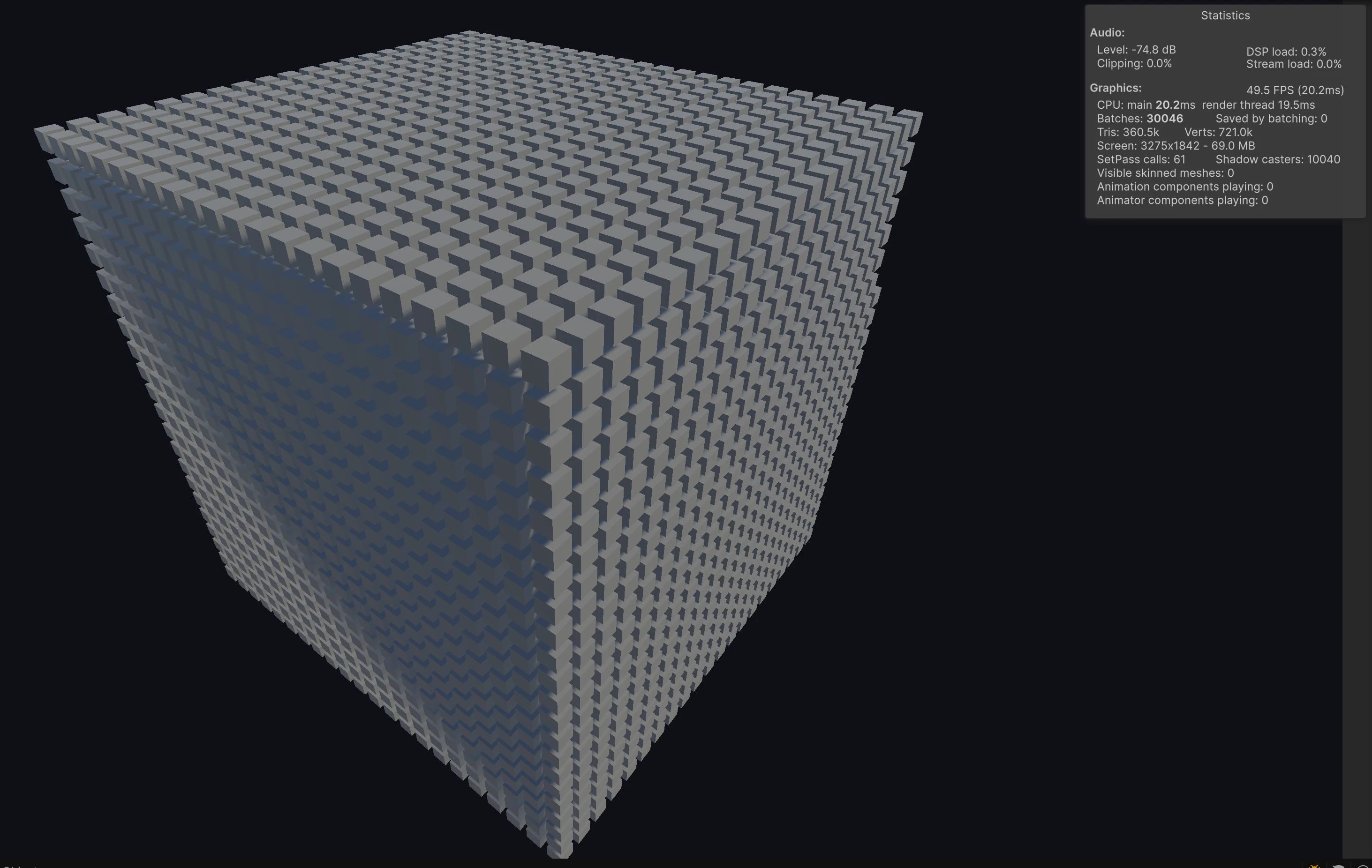
For the second run, I changed only one value, Amount = 10.000, and ran the same script. This is where the spawn cost becomes obvious. The scene still runs, but startup hitch and frame cost are much easier to notice. At capture, Statistics showed about 49.5 FPS (20.2 ms per frame).
For the third run, I pushed to Amount = 100.000 with no structural code changes. At this point the MonoBehaviour path gets heavy very quickly on my machine, and this is the point where I stop trusting it for scalable simulation work. At capture, Statistics showed about 7.2 FPS (about 138.9 ms per frame).
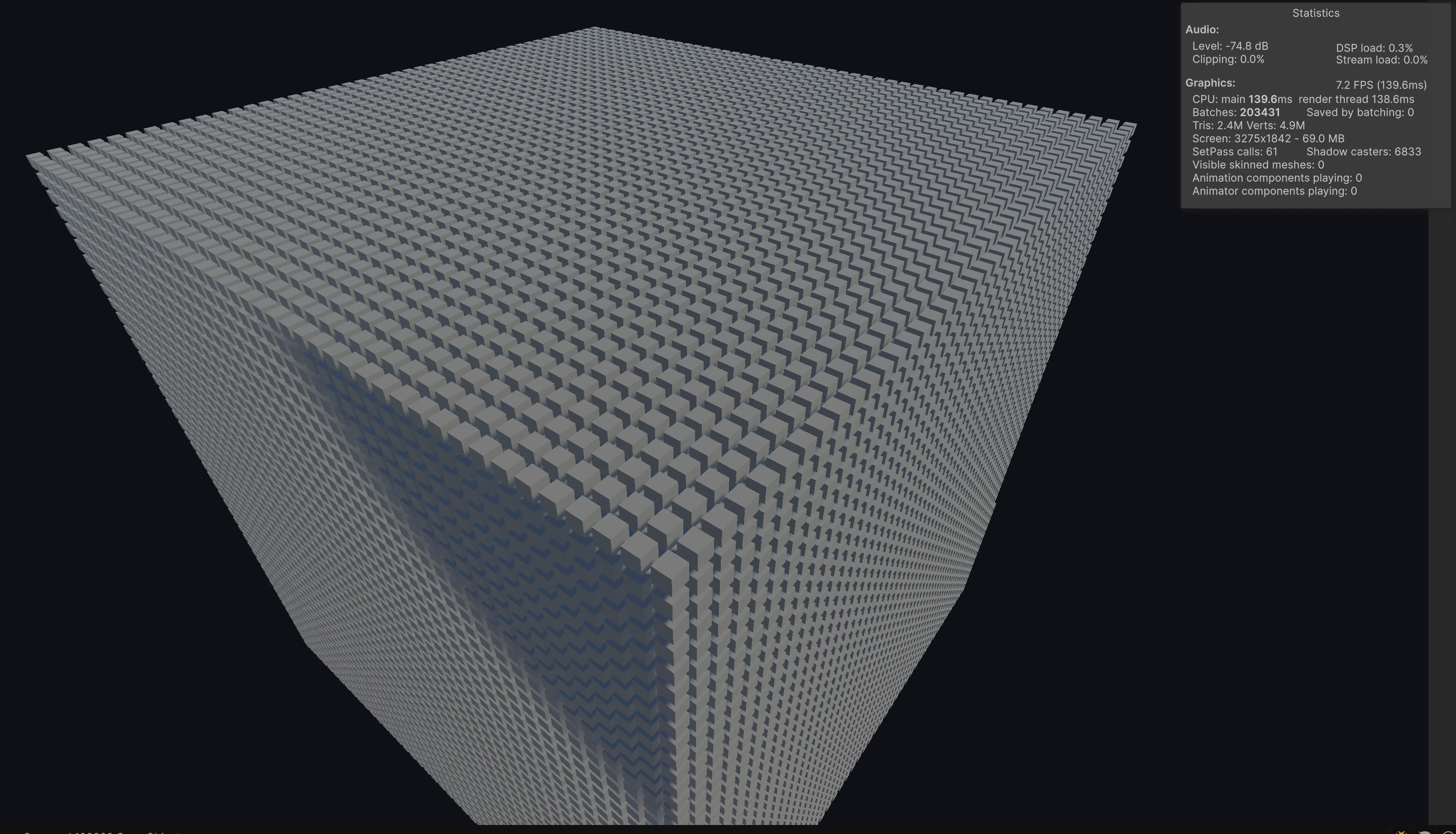
When I push this MonoBehaviour approach to around one million cubes, Unity freezes on my machine. I do not have a valid screenshot from that run because the Editor locks up.
Performance gets worse as you add more units because this path creates and manages a huge number of full GameObjects. Each cube is not only a position in space. It comes with Transform hierarchy work, renderer state, a default primitive collider on each instance, and lifecycle overhead. Instantiation cost scales hard, memory pressure goes up, and the main thread has a lot more object and engine work to process. At low counts, that overhead is acceptable. At high counts, it compounds fast and frame time spikes.
This is the point where the DOTS side starts. We keep the same core idea, spawn a lot of cubes, but switch the data model and runtime path. The goal is practical, reduce main thread pressure and improve frame rate under higher counts.
SubScenes in Unity Entities
From this point, we are switching to the DOTS example path. You will author in a SubScene and bake it. Baking is what turns your GameObject setup into entities and components for play mode.
A SubScene is a scene chunk where you still use the Hierarchy and MonoBehaviours like normal. After you bake, that chunk is what ECS runs in play mode.
SubScenes are created inside an existing scene. In this example, I create it inside my Main scene.
To create one, right click in the Hierarchy and choose New Sub Scene then an empty sub scene option. Unity labels this as Empty Subscene or Empty Scene depending on version.
Right now I am creating my first SubScene for this sample. My play scene is named Main, so I name the SubScene Main_Subscene. That keeps the role obvious in the Project window and matches how I think about the pair while I work through the guide.
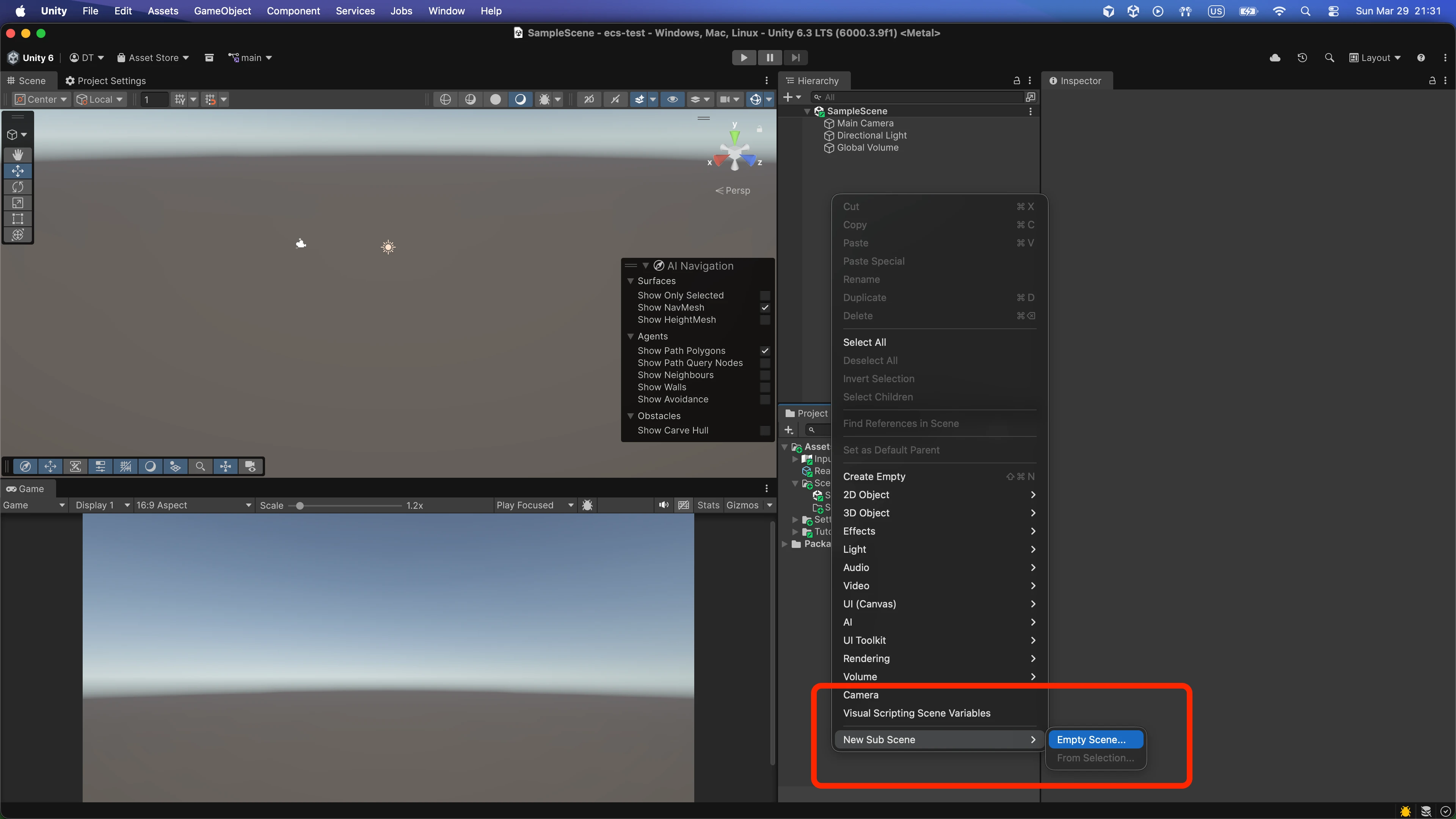
Later you can use SubScenes for scale, authoring, and streaming. Split large worlds into chunks, keep designers in familiar workflows, and load or unload entity data by region. The main scene usually holds global setup like cameras and lighting, while SubScenes hold the data that gets baked.
ECS authoring with Bakers
Once you have a SubScene open, this is where the ECS authoring work happens in the same Hierarchy you already use. You still place objects, attach MonoBehaviours, and set fields in the Inspector. The part that is new is the Baker. When you bake the SubScene, the Baker reads that authoring MonoBehaviour, resolves prefabs into entity references, and writes ECS components onto entities. At runtime a system queries those components and does the spawn work, not the MonoBehaviour Update loop.
For this sample I add one authoring script, CubeSpawnerAuthoring, that holds the prefab reference and the spawn count, then I bake so the ECS component CubeSpawner exists as real runtime data. Create a new C# script in your project named CubeSpawnerAuthoring.cs, paste the example below, then add it to an object inside your SubScene and set the fields in the Inspector before you bake.
using Unity.Entities;
using UnityEngine;

public class CubeSpawnerAuthoring : MonoBehaviour
{
    public GameObject CubePrefab;
    public int Amount;

    class Baker : Baker<CubeSpawnerAuthoring>
    {
        public override void Bake(CubeSpawnerAuthoring authoring)
        {
            var entity = GetEntity(TransformUsageFlags.None);

            AddComponent(entity, new CubeSpawner
            {
                Prefab = GetEntity(authoring.CubePrefab, TransformUsageFlags.Dynamic),
                Amount = authoring.Amount
            });
        }
    }
}

public struct CubeSpawner : IComponentData
{
    public Entity Prefab;
    public int Amount;
}
CubeSpawnerAuthoring is the Inspector surface. The nested Baker runs during baking and writes a CubeSpawner component onto the entity. CubeSpawner : IComponentData is the runtime shape that an ECS system can query.
The MonoBehaviour is not part of the runtime hot path. It exists so you can define data in a way that is easy to work with.
First you need a cube prefab for ECS to instantiate. Create a cube in the scene with GameObject > 3D Object > Cube. Drag that GameObject from the Hierarchy into the Project window to create a prefab asset. Remove the cube instance from the Hierarchy so only the prefab remains in the Project. You do not want a stray scene instance while you author the spawner. On CubeSpawnerAuthoring, assign that prefab to the Cube Prefab field.
In the Hierarchy under my SubScene I create an empty GameObject named GlobalSpawner, add CubeSpawnerAuthoring, then assign the cube prefab and Amount in the Inspector. That is the setup this screenshot shows.
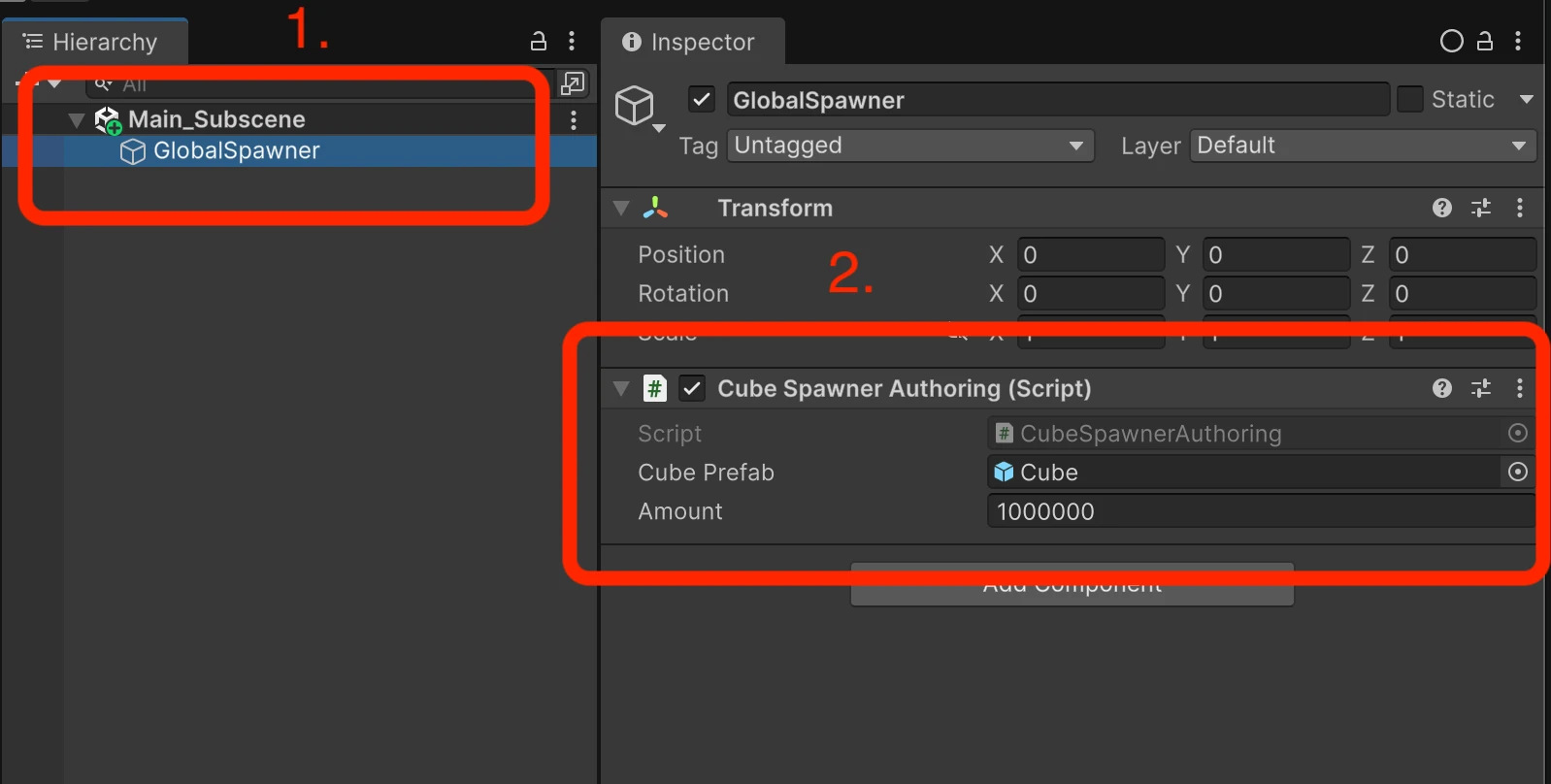
Everything below still refers to the CubeSpawnerAuthoring script you pasted above. Each short section explains one part of that file. When you read about authoring versus runtime, IComponentData, the nested Baker, or GetEntity, look back at the snippet. Those names are the same ones already in that block, not a second example.
Structs and IComponentData
In the sample, the type you attach in the scene is CubeSpawnerAuthoring. The ECS runtime type is the struct CubeSpawner, which is separate on purpose. Authoring lives on a GameObject. IComponentData is what ends up on entities after baking.
Most ECS component data is defined as a struct. That keeps memory contiguous and predictable, which is the whole point of ECS layout.
These structs implement IComponentData and stay unmanaged in practice. In the sample, the Baker on CubeSpawnerAuthoring builds a CubeSpawner value and passes it to AddComponent. That copy is what your systems read at runtime.
MonoBehaviour as authoring only
In the sample, CubeSpawnerAuthoring is the MonoBehaviour that only exists so you can edit values in the Inspector.
The MonoBehaviour is just the Inspector surface. You expose fields like GameObject CubePrefab and int Amount so designers can configure behavior without touching ECS APIs.
Runtime logic does not live there. Systems handle that.
Baker and baked entities
In the sample, the nested Baker : Baker<CubeSpawnerAuthoring> is what runs when you bake the SubScene.
Baker<TAuthoring> is the code that runs during baking and writes ECS data. Inside Bake, you call GetEntity, resolve prefabs, and add components.
Bake runs in the Editor, not during gameplay. Small samples often keep the Baker nested inside the MonoBehaviour. Larger projects tend to split files once things grow.
GetEntity and entity references
In the sample, the calls inside Bake are where GetEntity shows up.
GetEntity maps authoring objects to entity handles during baking. This is how you connect prefabs and scene objects to ECS data.
In that same Bake method, you use GetEntity(TransformUsageFlags.None) for the main entity, and GetEntity(authoring.CubePrefab, TransformUsageFlags.Dynamic) to resolve the prefab.
That only runs while baking in the Editor, not later in play mode when you spawn things yourself. The prefab must be visible to the baking set or resolution will fail.
CubeSpawnerSystem and a minimal loop
After you bake CubeSpawnerAuthoring, ECS stores the CubeSpawner component on an entity. A system queries that component and spawns instances. The query uses CubeSpawner because that is the runtime type, not the MonoBehaviour.
The sample builds a cubic grid. It calculates the side count from the total amount, loops through a 3D grid, instantiates entities, assigns positions using LocalTransform, and stops when the requested count is reached.
At the end, the system disables itself. That line matters. Without it, the system will run every frame and keep spawning indefinitely.
using Unity.Entities;
using Unity.Transforms;
using Unity.Mathematics;

// 'partial' is required here because Unity.Entities generates part of this ISystem type.
public partial struct CubeSpawnerSystem : ISystem
{
    public void OnCreate(ref SystemState state) { }

    public void OnUpdate(ref SystemState state)
    {
        // SystemAPI.Query finds all entities in the world that have our CubeSpawner data.
        foreach (var spawner in SystemAPI.Query<RefRW<CubeSpawner>>())
        {
            int amount = spawner.ValueRO.Amount;

            // Calculate the size of one side of the cube (cubic root)
            int sideCount = (int)math.ceil(math.pow(amount, 1f/3f));
            int spawnedCount = 0;

            for (int x = 0; x < sideCount; x++)
            {
                for (int y = 0; y < sideCount; y++)
                {
                    for (int z = 0; z < sideCount; z++)
                    {
                        // Stop if we hit the limit set in the Inspector
                        if (spawnedCount >= amount) break;

                        // Instantiate creates a new Entity copy of the prefab
                        Entity instance = state.EntityManager.Instantiate(spawner.ValueRO.Prefab);

                        // Calculate 3D position with 1.5 units of spacing
                        float3 position = new float3(x, y, z) * 1.5f;

                        // Set the ECS Transform component
                        state.EntityManager.SetComponentData(instance, new LocalTransform
                        {
                            Position = position,
                            Rotation = quaternion.identity,
                            Scale = 1f
                        });

                        spawnedCount++;
                    }
                }
            }

            // CRITICAL: Disable the system so it only spawns once on the first frame.
            state.Enabled = false;
        }
    }
}
ISystem and OnUpdate
ISystem is a lightweight system interface. OnCreate runs once, and OnUpdate runs every frame unless the system is disabled.
You access data through SystemState and query components using SystemAPI.
Unity.Mathematics and transforms
Unity.Mathematics provides types like float3 and quaternion that align with Burst and jobs. Unity.Transforms provides LocalTransform, which controls position, rotation, and scale.
After instantiating an entity, you set its transform if the prefab defaults are not enough.
MonoBehaviour vs ECS performance
The GameObject version builds the same grid using CreatePrimitive, Vector3 spacing, and a shared parent.
Each cube carries Transform, MeshFilter, MeshRenderer, and a Collider. The ECS version still pays for instantiation and memory, but it scales differently.
Raise Amount and watch where cost shows up first in Statistics. Large counts are useful for testing limits, not as a target for normal gameplay.
DOTS benchmark results
Now we run the same progression through the ECS path so the comparison stays fair against the MonoBehaviour baseline.
Set Amount on CubeSpawnerAuthoring to 1.000, then 10.000, then 100.000, then 1.000.000. Bake the SubScene, enter Play Mode, and read Statistics the same way you did above. The captures below are from my DOTS runs on M3 Max with 64 GB RAM. FPS and ms values are taken from the Statistics overlay at the same moment as each screenshot.
For Amount = 1.000, the ECS spawn path stays light. At capture, Statistics showed about 342.3 FPS (2.9 ms per frame).
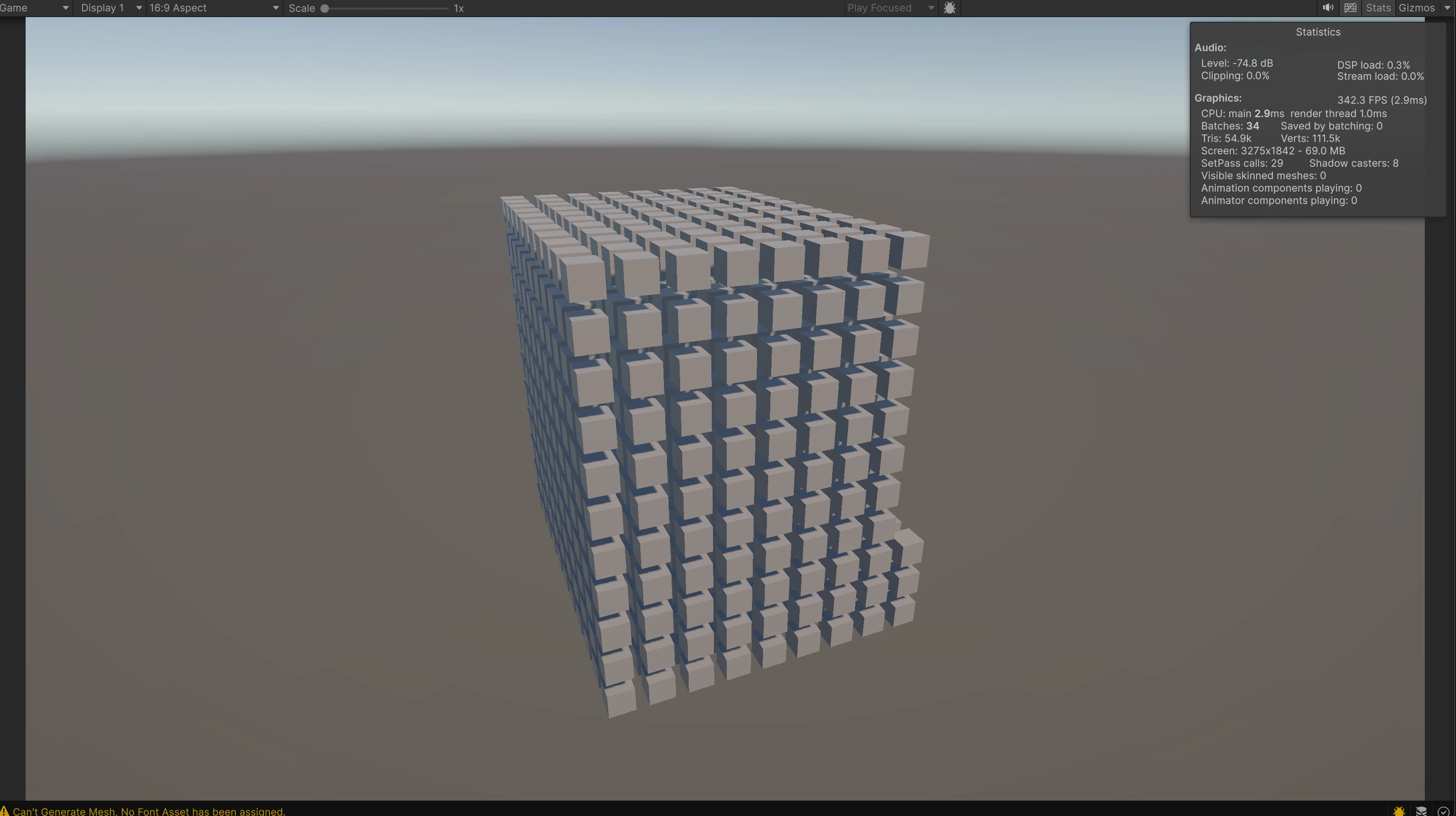
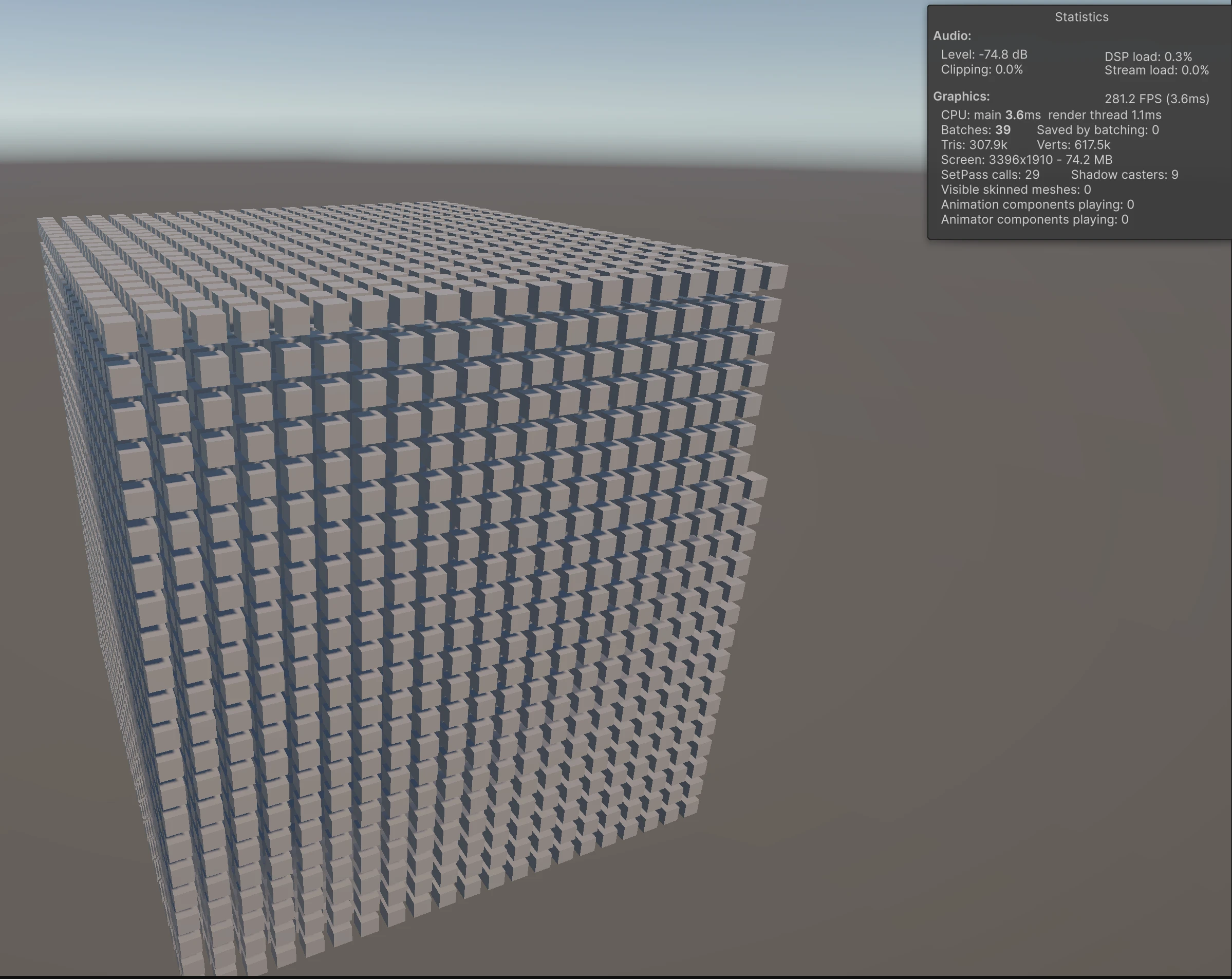
For Amount = 10.000, cost rises but the run is still smooth on my machine. At capture, about 281.2 FPS (3.6 ms per frame).
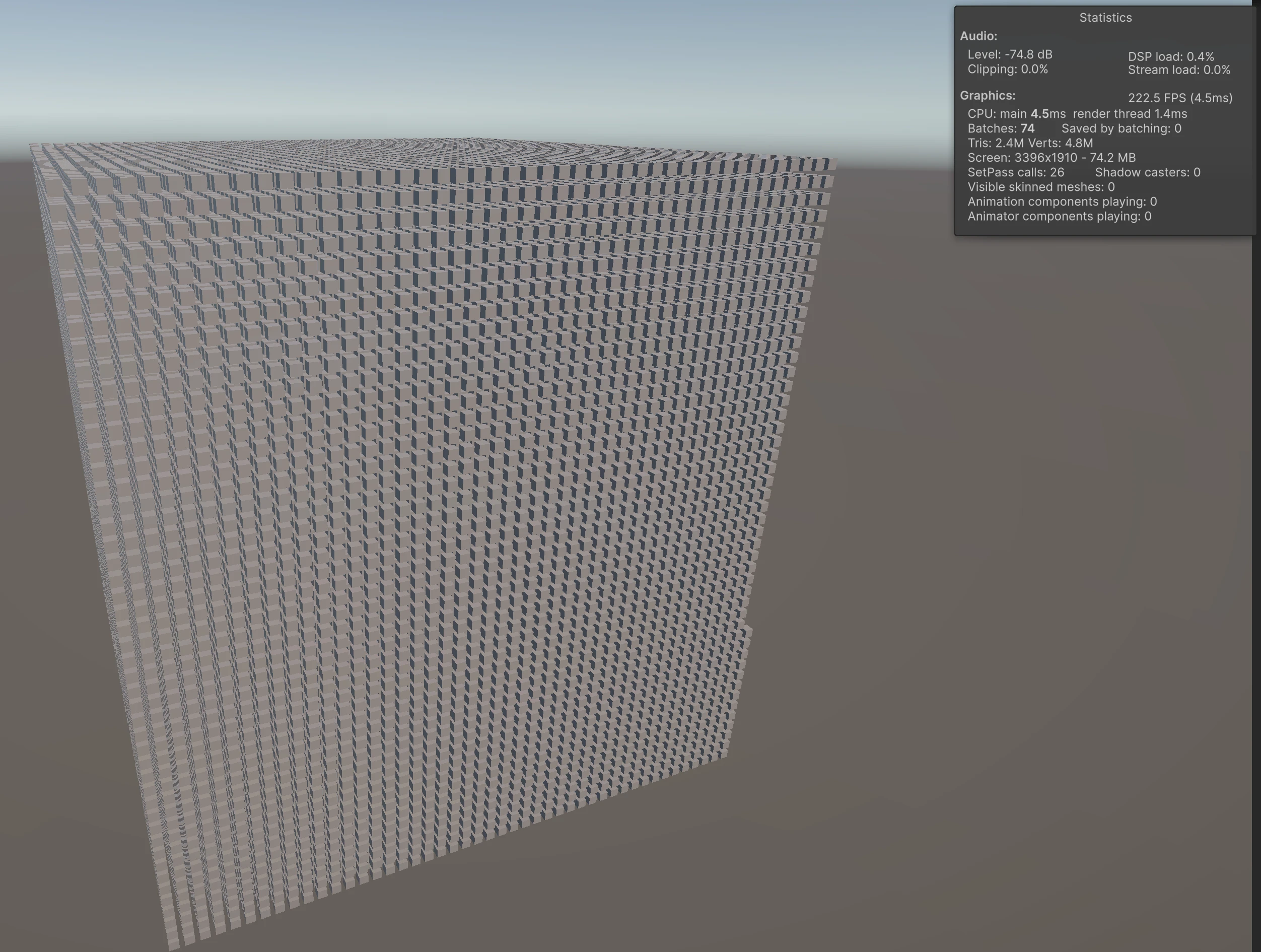
For Amount = 100.000, the gap between this path and the MonoBehaviour grid from earlier reads clearly. At capture, about 222.5 FPS (4.5 ms per frame).
For Amount = 1.000.000, I treat it as a stress test only. At capture, about 56.2 FPS (17.8 ms per frame). That is still playable on my setup, unlike the MonoBehaviour case where one million cubes froze the Editor.
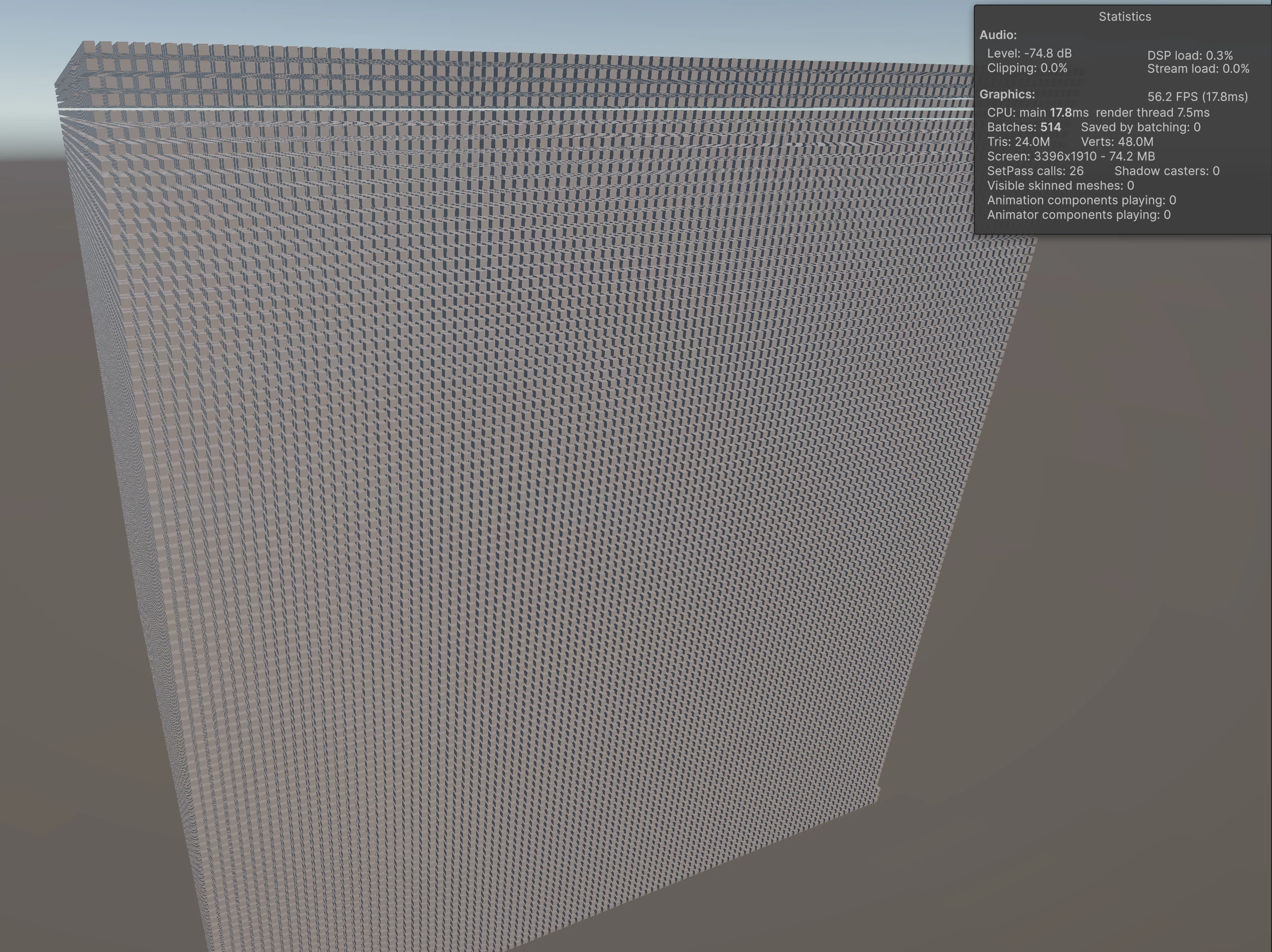
The image matches the Statistics readout from the paragraph above. That is the last step in this ECS spawn test on my side. The comparison block is done. The next section steps back and asks what any of this means if you are deciding whether to invest in Entities in 2026.
What should you take away from Unity 6 DOTS and ECS?
I started with a plain MonoBehaviour grid so the cost curve shows up before you install Entities or touch SubScenes. The second half of this guide is the same spawn test with Unity Entities, a baked SubScene, CubeSpawnerAuthoring, and a small CubeSpawnerSystem. On my M3 Max runs, the FPS and milliseconds in the screenshots are the signal I care about when someone asks whether DOTS and ECS are worth the learning cost in 2026.
If you are new to this stack, do not adopt it from a headline alone. Run the same Amount steps on your machine, watch the Game view Statistics overlay, and let your own FPS and frame time answer the question.
When you are ready to go deeper than a single ISystem, Jobs and Burst are the natural next layer. The Learn DOTS and ECS roadmap walks that path with examples you can open in the Editor.
For the wider picture on what DOTS is and whether it fits your goals, read What is Unity DOTS? Is Unity DOTS worth learning in 2026?. This article stays focused on a first practical pass with Unity 6, Entities, and a comparison you can repeat.
Another article worth reading What is Unity C# Job System? Do I need to learn it in 2026?
